Publish To RustHQ
Publish To RustHQ sends the map or custom monument you have open to the RustHQ Marketplace. You can post a new version of a product you already sell, or, as an approved vendor, make a new listing.
Before you start
- Sign in to RustHQ with your vendor account. Only approved vendors can publish.
- For a custom monument: save it in your Custom Monuments folder. See Create and edit monuments.
- Set up the scene view the way you want buyers to see your work. RustEdit takes a picture of the middle of the scene view when you publish. A new listing uses it as the product's picture, and a custom monument's upload includes it.
What RustEdit sends
| You have open | What RustEdit does | Category on RustHQ |
|---|---|---|
| A map | Saves the map, exports it, and uploads the exported .map file. See Export. | Maps |
| A custom monument | Saves it, then packs it into a zip with every monument placed inside it and the picture. | Prefabs |
RustHQ's Prefabs category takes .zip uploads, so a custom monument goes up as one .zip file.
When a custom monument uses products you downloaded from the marketplace, RustEdit does not pack them: they are another vendor's files. The dialog warns you: "It uses 2 marketplace product(s). They are not packed: buyers need them too." It also warns you when a monument placed inside is missing on your computer, because buyers would get an empty copy.
Open the dialog
Use one of these:
- .
- While a monument is open: the cloud button (Publish To RustHQ) beside the save button on the monument bar above the scene view.
The first line says what will be sent, for example "Map Procedural_4000. It is saved and exported first."
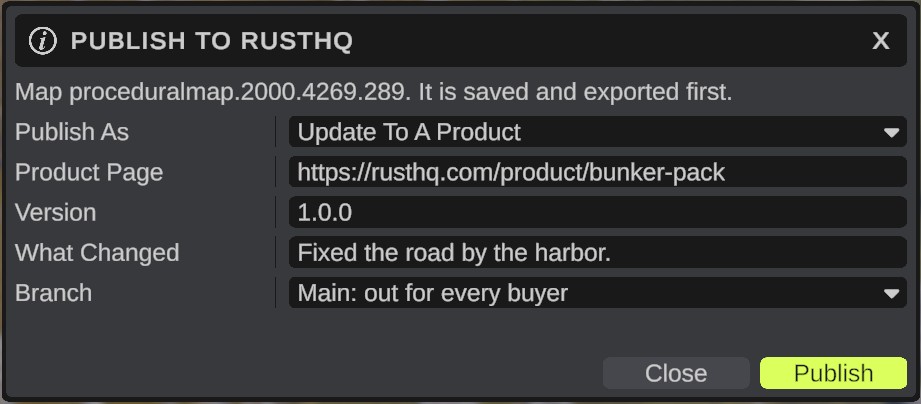
How to publish a new version
- Open the dialog.
- If Publish As shows, pick Update To A Product.
- In Product, pick the product. The list shows your products in the right category, with their current versions. A file you published before picks its own product.
- Check Version. RustEdit suggests the next version, for example
1.4.3after1.4.2. - Type the patch notes in What Changed.
- Pick a Branch.
- Click Publish. RustEdit saves the file (a map is also exported), then uploads it and shows the progress.
- When it is done, the dialog says "v1.4.3 is out. Every buyer is told." Click Open On RustHQ to see the product page.
If RustHQ answers "v1.4.3 is sent and waits for its release time.", the version is scheduled on the website and goes out later.
If your account lists no products in this category, the dialog shows Product Page instead of Product. Paste your product's address, for example https://rusthq.com/product/bunker-pack.
How to make a new listing
New Listing shows only when RustHQ lets your account make new listings.
- Open the dialog.
- In Publish As, pick New Listing.
- Fill in the fields. See Fields and limits.
- For a map, answer Map Has A Password and Needs Extension. Both are needed.
- Click Publish. RustEdit checks the listing first, then saves, uploads and sends it.
- The dialog says your product "was sent to RustHQ. Staff review it before it goes on sale."
RustHQ takes only 10 new listing tries an hour from one sign-in, and a refused try counts too. RustEdit checks the name, price, version and tags before it sends anything, so most mistakes do not use a try.
Fields and limits
| Field | Shown for | What to enter |
|---|---|---|
| Publish As | Approved vendors | Update To A Product or New Listing. |
| Product | Updates | One of your products in this category. |
| Product Page | Updates, when no product is listed | Your product's page address, or just the last part of it (bunker-pack). |
| Name | New listings | The product's name. Needed, at most 128 characters. RustEdit fills in the file name. |
| Tagline | New listings | One line about it, at most 160 characters. |
| Price (USD) | New listings | 0 for free, or at least 0.50. |
| Tags | New listings | Tags separated by commas, for example monuments, pve. At most 8 tags, each at most 24 characters. Every tag must be one that RustHQ has: the list shows under the box. Tags are saved in lower case. |
| Description | New listings | Markdown. You can change it on the website later. |
| Map Has A Password | New map listings | Yes when buyers need a password to open the map in RustEdit. See Map password. |
| Needs Extension | New map listings | Yes when the server needs the RustEdit 2 server extension to run the map, for example for a map larger than 6000 or for RustEdit's own map data. |
| Version | Always | A version like 1.4.2, at most 32 characters. A test version like 1.5.0-beta.1 works too. For an update it must be higher than the product's current version. |
| What Changed | Always | Patch notes, in Markdown. |
| Branch | Updates | Main: out for every buyer, Beta: test build, no announcement or Staging: test build, no announcement. |
The file remembers its product
After a publish, RustEdit saves the product in the map or monument file. The next time you open the dialog for that file, its product is picked for you, and Version suggests the next version after the one you published.
For a custom monument, RustEdit also writes the version into the monument's Version field. See Monument.
Stop a publish
Click Stop while it uploads. The dialog says "Stopped. Nothing new was published."
Troubleshooting
| Message | What to do |
|---|---|
| "Sign in to RustHQ to publish. Only approved vendors can publish." | Click Sign In. If you are signed in and cannot publish, your account is not a vendor account on RustHQ. |
| "The version must be higher than the product's v..." | Raise Version above the version shown. |
| "The version must look like 1.4.2." | Use three numbers with dots. |
| "The price must be 0 for free, or at least $0.50." | Change Price (USD). |
| "RustHQ does not have these tags" | Use only the tags listed under Tags. |
| "Answer both map questions" | Pick Yes or No in Map Has A Password and Needs Extension. |
| "Save the monument in your Custom Monuments folder first." | Use and save it inside your Custom Monuments folder. |
| "The file was not saved, so nothing was sent." | You cancelled the save, or it did not work. Publish again and finish the save. |
| "RustEdit could not take a picture of the view for the product icon." | Make sure the scene view is open and shows your work, then publish again. |
| "The file is too big for this category on RustHQ." | Make the file smaller, or ask RustHQ about the size limit. |
| "Too many requests to RustHQ." | Wait the number of seconds the message gives. |