Terrain Graph
RustEdit ProThe Terrain Graph makes terrain from nodes that you wire together. Each node does one job, such as making noise, smoothing a height map or painting a ground texture where the ground is steep. Wires carry the result from node to node. The terrain shows the result live while you edit, and Apply writes it into the map.
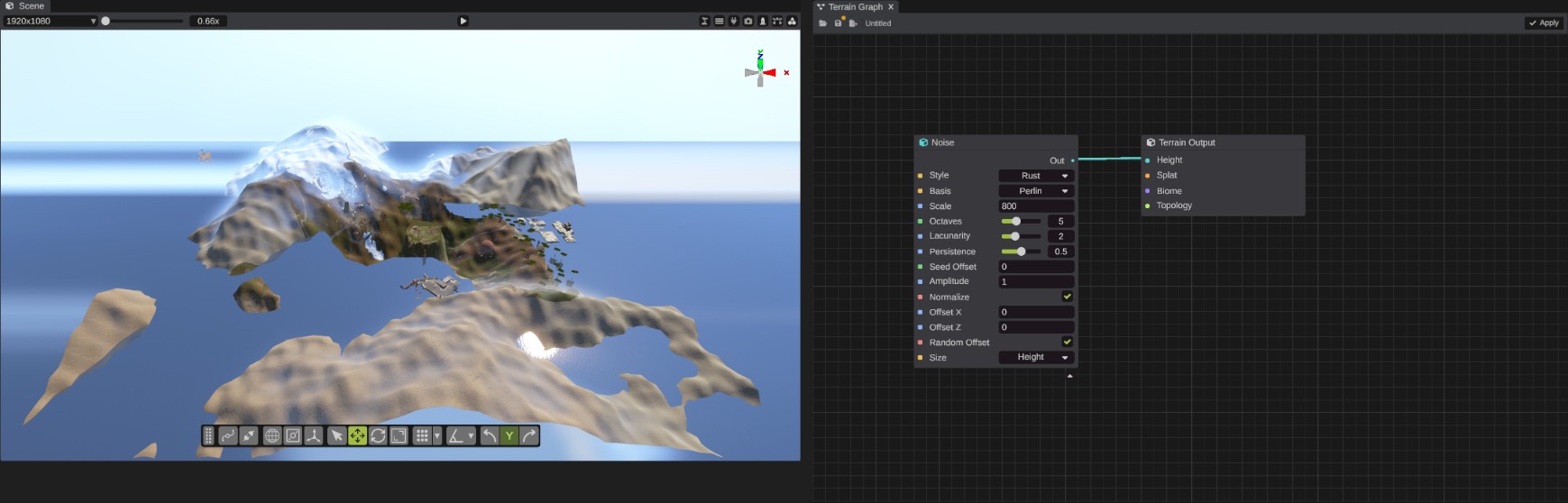
What a graph can make
Every graph ends in a Terrain Output node. It has one input for each terrain map. Whatever you wire into an input becomes that map. An input with nothing wired in leaves its map as it is.
| Terrain Output input | What it holds | Notes |
|---|---|---|
| Height | One value for each point, from 0 (the lowest the terrain goes) to 1 (the highest). | Sea level is world height 0. Use the Sea Level node instead of guessing its value. |
| Splat | The 8 ground textures, such as Dirt, Grass, Sand and Snow. | |
| Biome | The 5 biomes: Arid, Temperate, Tundra, Arctic and Jungle. | |
| Topology | Rust's topology flags. | Apply writes it into the map. The terrain does not show topology, so it has no preview. |
The graph changes terrain maps only. It does not place prefabs, roads, rivers or splines. It can read them, though:
- Current Map reads the open map's height, splat, biome and topology, so a graph can change a real map instead of starting from nothing.
- Texture reads a PNG or JPG image, such as a height map made in another program.
- Spline Mask reads the map's splines as a mask, so a graph can carve rivers or flatten ground along your roads.
See Nodes for every node.
When to use the graph
| Use | When |
|---|---|
| Terrain Graph | You want to change the whole map with rules: "sand below 5 meters", "rock on slopes steeper than 40 degrees", "snow on the high ground". You want to try many versions by changing one number or the seed. You want to start a map from noise, from an image or from Rust's own generator. |
| Terrain tools | You want to change one place by hand: raise a hill, paint a path of gravel, fix a spot. Brushes are also the way to touch up a map after you apply a graph. |
| Procedural Generation | You want Rust's full map generator, with its monuments, roads, rivers, rails and rocks. The procedural panel runs Rust's own steps. It is free. |
You can mix them. For example, run the procedural steps, then use a graph that starts from Current Map to change the ground textures, then touch up by hand with brushes.
How a graph works
- Nodes have their inputs on the left side and their outputs on the right. A wire carries a result from one node's output to another node's input.
- Ports are the sockets on a node. A round socket carries a map (a texture). A square socket carries one number, a switch or a choice. See Graph editor.
- Values that you type into a node, such as a noise's scale, are used while nothing is wired into that input. Wire another node into it and the wire wins.
- Only nodes that lead to the Terrain Output run. A node that is not wired toward it does nothing.
- The seed. Add a Graph Seed node to set the seed for every random node in the graph, custom nodes included. Change it for a new map. Without one, the seed is 0.
- Map size. The graph works at the open map's own sizes: the height map's size for height, and the splat, biome and topology maps' own sizes for those.
Before you start
- You need RustEdit Pro. Without it, the toolbar button is grayed out, and the window shows "This feature requires RustEdit Pro". See Free, Plus and Pro.
- Open a map, or make a new one. The graph previews on the open map.
Make your first graph
- Click the Terrain Graph button in the toolbar on the left, or open . The Terrain Graph window opens with a Terrain Output node. The terrain preview starts.
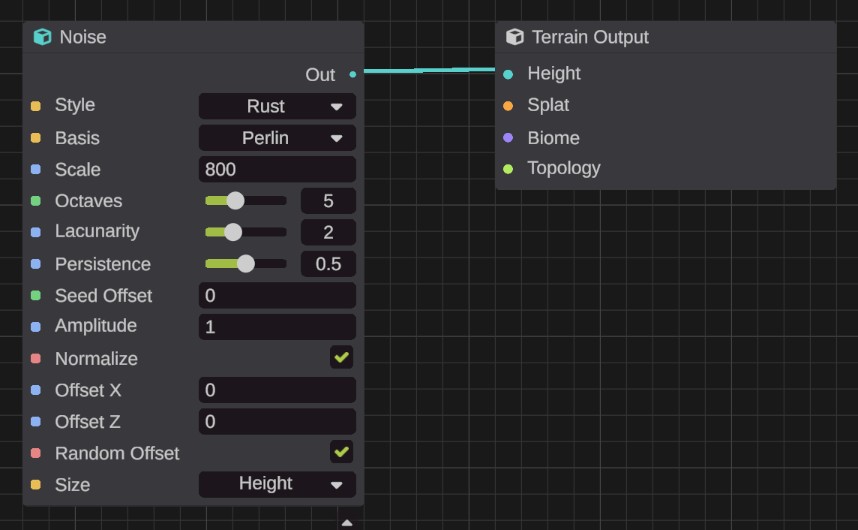
- Right-click the empty canvas and pick . A Noise node appears where you clicked.
- Drag from the Noise node's Out socket to the Terrain Output node's Height socket. The terrain in the scene view takes the shape of the noise. The map itself has not changed yet.
- Change the Noise node's values, such as Scale and Octaves. The terrain updates after each change.
- Click Apply in the window's toolbar. RustEdit writes the height into the map. Press Ctrl+Z with the pointer outside the graph to undo it.
- Click Save to keep the graph in a
.terraingraphfile.
Right-click a node and pick Preview to see a small picture of its result on the node. It helps you see what each step of a graph does.