Settings
The Settings dialog holds RustEdit's options. Open it with .
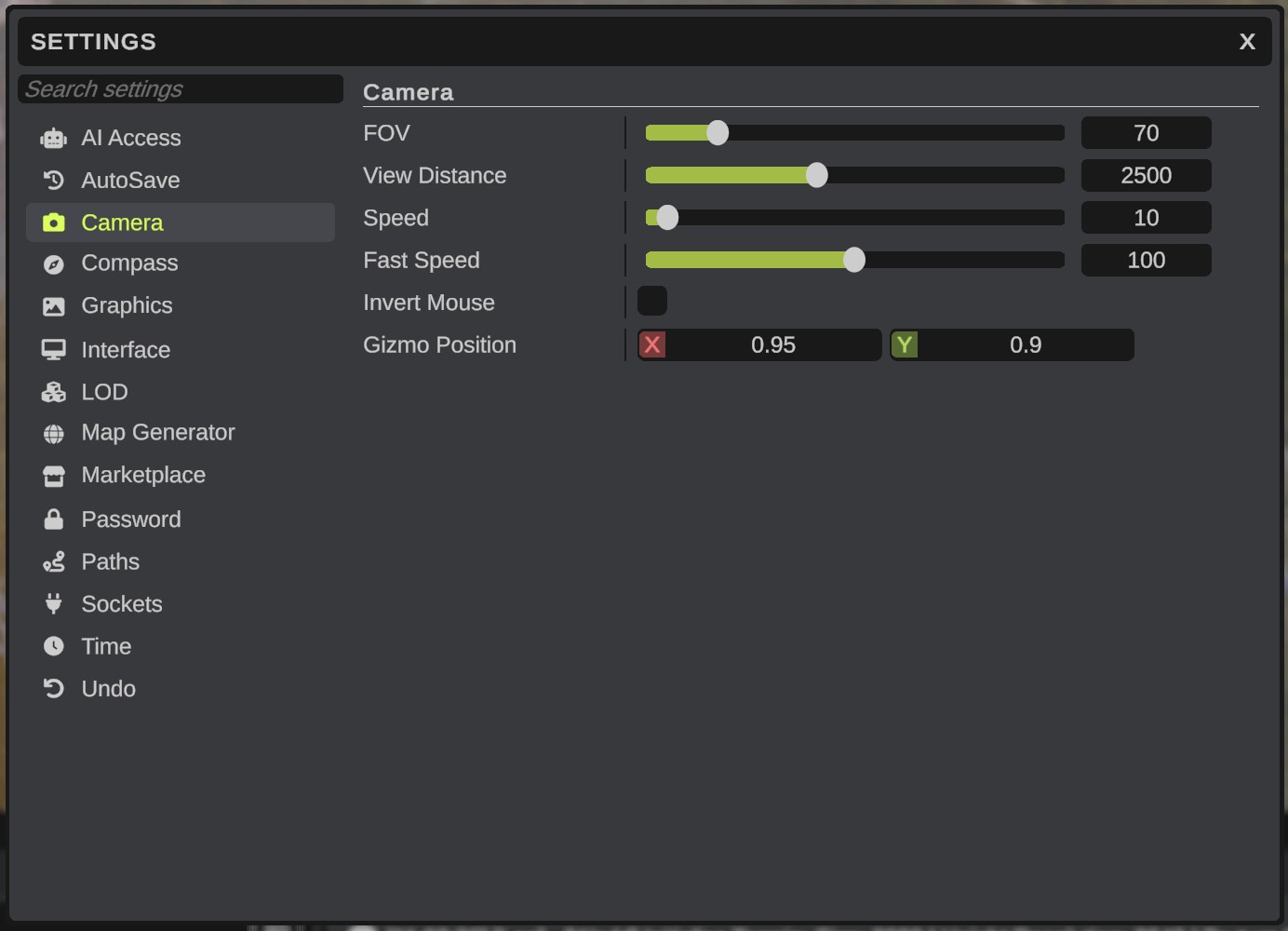
How the dialog works
- The groups are on the left. Click one to see its settings on the right.
- Type in the Search settings box to find a setting. The list then shows the matching settings of every group. A group name or a setting name can match. Click a group to end the search.
- A change works at once. Some settings, such as the folders under Paths, need a restart. Notifications then says Restart RustEdit to apply the change to and the setting's name.
- A setting that is not at its default value has a reset icon at the end of its row. Click it (Reset to default) to put the default back.
RustEdit saves the settings when you quit and when you open a map. They are in Configuration/configuration.json in RustEdit's folder. The Map Generator group is in Configuration/map_generator.json.
Only edit these files while RustEdit is closed. RustEdit writes them when it quits, so changes made while it runs can be lost.
AI Access
Lets AI apps use RustEdit's tools. See AI access.
| Setting | Default | What it does |
|---|---|---|
| Allow AI Apps | Off | AI apps on this computer (Claude, Cursor and others) can use RustEdit's tools through MCP. Needs RustEdit Plus. |
| Port | 47950 | The port AI apps connect to, http://127.0.0.1: and the port, then /mcp. Only this computer can connect. 1024 to 65535. |
| Access Key | Empty | The key the AI app sends with every request. RustEdit makes one when AI access first starts. Clear it to make a new one. |
AutoSave
See Auto save.
| Setting | Default | What it does |
|---|---|---|
| Enable Autosave | Off | Saves a copy of the map into the autosave folder at each interval while the map has unsaved changes. The map's own file does not change. |
| Interval (minutes) | 15 | Minutes between copies. 1 to 60. The first copy comes one interval after you turn auto save on. |
| Maximum Saves | 3 | How many copies RustEdit keeps: autosave_1.scene, autosave_2.scene and so on. After the last one, it writes over autosave_1.scene again. 1 to 100. |
The copies go to the Autosave Folder under Paths. Notifications says [Autosave] Saved a copy of the map to and the path of the file. Changes to these settings work at once.
- The map keeps its own file and its unsaved changes. Save it as usual.
- A copy has no map password, even when the map has one.
- Auto save copies the map only. It makes no copy while a monument is open or while you are in play mode.
- After a restart, RustEdit starts again at
autosave_1.scene.
Camera
See The scene view.
| Setting | Default | What it does |
|---|---|---|
| FOV | 70 | The camera's field of view in degrees. 60 to 120. |
| View Distance | 2500 | How far the camera draws, in meters. 100 to 6000. |
| Speed | 10 | How fast the camera flies, in meters per second. 1 to 200. |
| Fast Speed | 100 | How fast the camera flies while you hold Shift. 1 to 200. |
| Invert Mouse | Off | Turns the up and down look around. |
| Gizmo Position | 0.95, 0.9 | Where the camera gizmo sits in the scene view. X goes from 0 (left) to 1 (right), Y from 0 (bottom) to 1 (top). |
Compass
| Setting | Default | What it does |
|---|---|---|
| Enable Compass | On | Has no effect in this version. |
Graphics
How good the scene view looks, and how fast it draws. For more, see Graphics settings.
| Setting | Default | What it does |
|---|---|---|
| Anti-Aliasing Mode | FXAA | Smooths jagged edges: None, FXAA, SMAA or TSSAA. |
| Ambient Occlusion | On | Darkens corners and gaps that light does not reach. |
| Auto Exposure | On | Changes the brightness of the picture as the view gets lighter or darker. |
| Bloom | On | A glow around bright light. |
| Biome Fog | On | The fog of each biome. |
| Climate System | On | Changes the look of the picture with the biome the camera is in. |
| Contact Shadows | On | Small shadows where objects touch. |
| Foliage System | On | Draws grass and small plants. |
| Foliage Shadows | On | Whether grass and small plants cast shadows: Off, On, TwoSided or ShadowsOnly. |
| Global Quality | 2 | The overall quality level: 0 low, 1 medium, 2 high. Restart RustEdit after you change it: the new level is used from the next start. |
| Grass Quality | 100 | How dense the grass is. 0 to 100. |
| Grass Distance | 150 | How far away grass is drawn, in meters. |
| Light Shafts | On | Rays of sunlight. |
| Mesh Quality | 100 | How long objects keep their detailed models as they get further away. 0 to 100. |
| Motion Blur | On | Blurs the picture while the camera moves. |
| Occlusion Culling | On | Skips objects that are hidden behind others, so the view draws faster. |
| Parallax Mapping | 2 | 0 to 2. Has no effect in this version. |
| Sharpen | On | Sharpens the picture. |
| Vignette | On | Darkens the edges of the picture. |
| Volume Effects | On | Changes the light when the camera is inside, for example in a cave or tunnel. Off, the light is always as outdoors. |
| Target Frame Rate | 100 | The highest frame rate RustEdit draws at. 15 to 240. |
| Lower FPS Minimized | On | Lowers the frame rate to 10 while RustEdit is not the active window. |
| Water Quality | High | Low, Medium or High. |
| Water Reflections | On | Reflections on the water. |
| Volume Clouds | 2 | Cloud quality: 0 off, 1 low, 2 medium, 3 high, 4 ultra. |
Interface
| Setting | Default | What it does |
|---|---|---|
| Match Desktop Scaling | On | Sets the scale from the Windows display scaling, so 175% in Windows is a scale of 1.75. Changing Scale turns this off. |
| Scale | 1 | The size of the whole interface. 0.5 to 3. |
If the interface is too small on a 4K screen, turn Match Desktop Scaling on. If it is too large, move Scale down.
LOD
| Setting | Default | What it does |
|---|---|---|
| Distance Multiplier | 1 | A multiplier for the default LOD distances in Rust. Higher keeps detailed models further away, but draws slower. 1 to 10. |
Map Generator
How the map image looks in the Map panel and in saved map images. The settings button on the Map panel opens this group.
| Setting | Default | What it does |
|---|---|---|
| Use Biome Colors | On | Tints the splat color based on the biome at that point. |
| Biome Blend | 0.5 | The blend of the biome colors and base splat colors. 0 to 1. |
| Biome Contrast | 0.9 | The contrast of the biome colors. 0 to 1. |
| Use Normal Map | On | Applies the terrain normals to the map to give it depth. |
| Normal Strength | 1.5 | The strength of the normal map. 0 to 2. |
| Sun Power | 0.65 | The power of the sun on the map. 0 to 2. |
| Brightness | 1.05 | The brightness of the map. 0 to 2. |
| Contrast | 0.94 | The contrast of the map. 0 to 2. |
| Export Size | 4096 x 4096 | The width and height in pixels of a saved map image: 512 x 512 to 8192 x 8192. |
| Map Margin | 1000 | Meters of sea drawn around the terrain on the map and on saved images. The grid lines go on over it, the labels do not. 0 to 2000. |
| Grid Color > Overworld | Dark gray | The color of the grid on the map. Alpha sets how strong it is. |
| Grid Color > Underworld | Light gray | The color of the grid when an underground layer is shown. |
| Underground Color > Overlay | Purple | The color the map turns when an underground layer is shown, and in the Tunnel Editor. Alpha sets how much of the map it covers. |
| Underground Color > Layer | White | The color of tunnels and labs when an underground layer is shown. |
| Monument Color | Dark gray | The color of the monuments on the map. |
| Water Color | Blue gray | The color of the water on the map. |
| Offshore Color | Dark blue green | The color of the offshore water on the map. |
| Dirt Color, Snow Color, Sand Color, Rock Color, Grass Color, Forest Color, Pebble Color, Gravel Color | Rust's map colors | The color of each ground texture on the map. Each has a base color and one color for each biome. |
Marketplace
See Browse and download.
| Setting | Default | What it does |
|---|---|---|
| Search The Marketplace | On | The Content Browser search also finds prefabs sold on rusthq.com. It reads the marketplace list from rusthq.com when you search. |
Password
See Map password.
| Setting | Default | What it does |
|---|---|---|
| Dump Passwords | Off | Each time you save a map with a password, RustEdit adds the date, the file and the password to Configuration/passwords.txt. Use it to find a forgotten password. |
passwords.txt is plain text. Anyone who can open RustEdit's folder can read your map passwords. Only turn Dump Passwords on if nobody else can open that folder.
Paths
The folders RustEdit uses. Leave a path empty to use the folder of that name in RustEdit's own folder. A path to a folder that does not exist also uses that default. Changes need a restart.
| Setting | Default folder | What is in it |
|---|---|---|
| Rust Install Location | Set on the first start | Where RustEdit reads Rust's content from. See Installation. |
| Custom Monuments | CustomMonuments | Your custom monuments. They show in the Content Browser. |
| Brushes | Brushes | Your own terrain brushes. |
| Stamps | CustomStamps | Your own terrain stamps. |
| Prefab Palettes | PrefabPalettes | Prefab Brush lists. |
| Loot Presets | LootPresets | Loot profiles. |
| Vending Presets | VendingPresets | Vending profiles. |
| Autosave Folder | Autosave | Autosaves. |
| Custom Nodes | CustomNodes | Custom nodes for the Terrain Graph. |
| Custom Prefab Fields | CustomPrefabFields | Custom data manifests. |
Point Custom Monuments, Brushes or Prefab Palettes at a shared or synced folder to use the same files on two computers.
Sockets
See Sockets.
| Setting | Default | What it does |
|---|---|---|
| Draw Distance | 150 | How far from the camera sockets are drawn, in meters. 10 to 2000. |
| Handle Size | 16 | The size of a socket marker on the screen, in pixels. 4 to 48. |
Time
The time of day and the date of the sky. The Time and Weather panel changes the same values.
| Setting | Default | What it does |
|---|---|---|
| Progress Time | On | The time of day moves on by itself. |
| Hour | 12 | The time of day. 0 to 24. |
| Day | 15 | 1 to 31. |
| Month | 6 | 1 to 12. |
| Year | 2000 | 1900 to 2100. |
Undo
| Setting | Default | What it does |
|---|---|---|
| Record Selections | On | Records selections as undo steps, so Ctrl+Z also takes back a selection. |
| Max Undo Steps | 30 | The maximum number of undo steps RustEdit keeps. 1 to 1000. |
Settings that are not in the dialog
Some settings are saved in other places:
| What | Where to change it |
|---|---|
| Language | configuration.json, see Language. |
| Show RustEdit in your Discord status | configuration.json: Show status on Discord under Discord. |
| Show sockets and Move Individually | The transform widget and the socket tools. See Sockets. |
| Panel layouts | , see Layouts. |
| Interface colors | , see Color schemes. |
| Weather | The Time and Weather panel, see Time and weather. |
| Render resolution | The scene view header, see The scene view. |