Time and Weather
The Time and Weather panel sets the time of day and the weather that you see in the scene view. RustEdit uses Rust's own sky and weather, so you can check how your map looks at night, in fog or in a storm.
Time and weather only change what you see in RustEdit. They are not saved in the map, and they do not change the weather on a server.
Open the panel
Click the Time and Weather button in the toolbar on the left, or use .
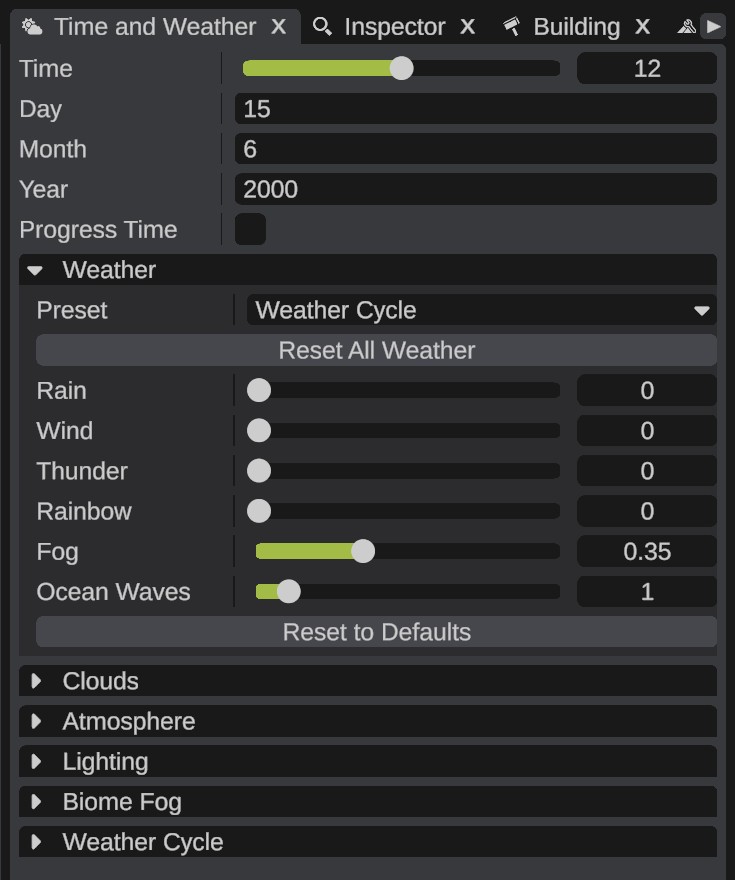
Time and date
The rows at the top of the panel:
| Option | What it does |
|---|---|
| Time | The hour, from 0 to 24. Drag it to move the sun and the moon. |
| Day | The day of the month. A day the month does not have changes to the nearest one. |
| Month | The month, from 1 to 12. |
| Year | The year. |
| Progress Time | On: time moves on by itself, and the Time slider follows it. Off: the time stays where you put it. |
With Progress Time on, a full day of 24 hours takes 80 minutes. One hour passes in about 3 minutes and 20 seconds.
The same options are in .
How the weather works
By default the weather follows the Weather Cycle: Rust's weather, which changes over the days by the chances in the Weather Cycle section. The sliders move by themselves to show the weather now.
When you move a slider, you fix that value: it stays where you put it, and the cycle no longer changes it. Each section ends with Reset to Defaults, which gives that section's values back to the cycle.
How to set the weather
- Open the Weather section.
- To start from one of Rust's weather types, pick it in Preset. Every value gets the preset's value.
- Move any slider to change one value.
- To go back to Rust's changing weather, click Reset All Weather, or pick Weather Cycle in Preset.
Weather
| Option | Range | What it does |
|---|---|---|
| Preset | Loads all the values of one of the game's weather presets. Weather Cycle goes back to the game's weather. | |
| Reset All Weather | Back to the game's weather cycle: no value stays fixed, and the weather chances are the game's. | |
| Rain | 0 to 1 | Rain, or snow on arctic ground. |
| Wind | 0 to 1 | How strong the wind is. |
| Thunder | 0 to 1 | Storm rain and lightning. |
| Rainbow | 0 to 1 | Shows in the day on temperate ground. |
| Fog | 0 to 1 | How thick the fog that covers the sky is. |
| Ocean Waves | 0 to 10 | The size of the ocean's waves. See Water. |
Clouds
| Option | Range | What it does |
|---|---|---|
| Cloud Setup | One of the game's volumetric cloud setups. Weather Cycle lets the weather pick. | |
| Coverage | 0 to 1 | How much of the sky the clouds cover. |
| Opacity | 0 to 1 | How see-through the clouds are. |
| Size | 1 to 10 | The size of the clouds. |
| Sharpness | 0 to 1 | How sharp the edge between cloud and sky is. |
| Coloring | 0 to 1 | The coloring of the clouds. |
| Attenuation | 0 to 1 | How much skylight the clouds block. |
| Saturation | 0 to 1 | How much sunlight the clouds block. |
| Scattering | 0 to 5 | How strongly light glows through the clouds. |
| Brightness | 0 to 5 | How bright the clouds are. |
In RustEdit's scene view, these rows do not change how the clouds look. RustEdit still saves the values with the weather.
Reset to Defaults in this section also gives the Cloud Setup back to the weather.
Atmosphere
| Option | Range | What it does |
|---|---|---|
| Rayleigh | 0 to 5 | Blue sky scattering. |
| Mie | 0 to 5 | Haze scattering. |
| Brightness | 0 to 5 | The overall brightness of the sky. |
| Contrast | 0 to 5 | The overall contrast of the sky. |
| Directionality | 0 to 1 | Size of the glow around the sun. |
| Fog Strength | 0 to 10 | Multiplies the fog. |
| Fog Height Falloff | 0 to 1 | How the fog changes with height. |
| Fog Start | 0 to 2000 | Distance where the fog starts, in meters. |
| Fog End | 0 to 2000 | Distance where the fog is full, in meters. |
| Biome Fog Curve | 0 to 5 | How the biome fog builds up with distance. |
| Biome Fog Saturation | 0 to 2 | Multiplies the color saturation of the biome fog's ambient light. |
A higher Fog Height Falloff thins the fog faster with height, so there is less haze on far hills. The change is small. A higher Biome Fog Curve brings the biome fog much closer and makes it thicker: at 5 it hides everything more than 100 to 200 meters away.
Lighting
| Option | Range | What it does |
|---|---|---|
| Ambient Light | 0 to 1 | Multiplies the ambient light from the sky. |
| Sun Light | 0 to 1 | Multiplies the light of the sun, or of the moon at night. |
| Reflections | 0 to 1 | Multiplies the sky's reflections. |
| Sun Brightness | 0 to 1 | How bright the sun looks in the sky. |
| Moon Brightness | 0 to 1 | How bright the moon looks in the sky. |
| Cloud Sun Color | 0 to 5 | Scales the sun's color on the clouds. |
| Cloud Moon Color | 0 to 5 | Scales the moon's color on the clouds. |
See Sky and lighting for more about the light.
Biome Fog
Each biome has its own fog: Arid, Temperate, Tundra, Arctic and Jungle. Each one has these rows and its own Reset to Defaults:
| Option | Range | What it does |
|---|---|---|
| Ambient Light | 0 to 5 | Multiplies the ambient light of the fog in this biome. |
| Light Boost | 0 to 5 | Multiplies the light boost of the fog in this biome. |
| Fog Start | 0 to 2000 | Distance where this biome's fog starts, in meters. |
| Fog End | 0 to 2000 | Distance where this biome's fog is full, in meters. |
Reset to Defaults at the end of the Biome Fog section resets all five biomes.
Weather Cycle
These sliders set how often each kind of weather comes in the cycle, from 0 to 1: Clear, Dust, Fog, Overcast, Storm and Rain. Reset to Defaults gives them the game's chances again.
They only matter while the weather follows the cycle. A preset or a fixed value wins over them.
Weather you can see
- Rain falls as snow on arctic ground. With Thunder, rain turns stormy and lightning strikes.
- The rainbow shows after rain, in the day, on temperate ground.
- Auroras can show at night over arctic ground when the sky is clear.
- Under water, small specks float around the camera. See Water.
Saving
RustEdit keeps your time and weather for the next start:
- The time and date you set are saved with your settings. With Progress Time on, RustEdit saves the hour you last set, not the hour the sky has moved on to. The next start begins at that hour again.
- The weather is saved in its own settings file: the preset, the cloud setup, every fixed value and every changed chance. RustEdit writes it when you close the app or load a map.
When RustEdit starts, it puts the same weather back, and the Preset list shows the preset you used.
Tips
- Check your map at night and in fog before you publish it. Lights, signs and monuments can look very different.
- To compare two places with the same weather, pick a preset. The cycle would change the weather while you look.
- In a multiplayer session, each person has their own time and weather.