Installation and First Start
RustEdit reads all of Rust's models, textures and prefabs straight from your Rust game. You do not download them separately. On the first start, you tell RustEdit where Rust is installed.
What you need
- Windows 10 or later, 64-bit. RustEdit is a Windows program.
- Rust installed through Steam on the same computer. RustEdit loads its content from the Rust game client. The Rust folder must have a
Bundlesfolder in it. - A folder RustEdit can write to. RustEdit keeps its settings, logs and your files in the folder it is installed in. Do not install it in a folder that needs administrator rights to change, such as
Program Files. - A RustHQ account, only if you want RustEdit Plus or Pro or the RustHQ marketplace.
Minimum requirements
| Part | Minimum |
|---|---|
| Operating system | Windows 10 or later, 64-bit |
| Processor | AMD Ryzen 5 1400 or Intel Core i5-6600 |
| Memory | 16 GB RAM |
| Graphics card | AMD Radeon RX 470, NVIDIA GeForce GTX 1060 or Intel Arc A580 |
| DirectX | Version 11 |
| Rust | Installed through Steam |
Download
Get RustEdit from the RustEdit Launcher page on RustHQ.
First start
- Start RustEdit.
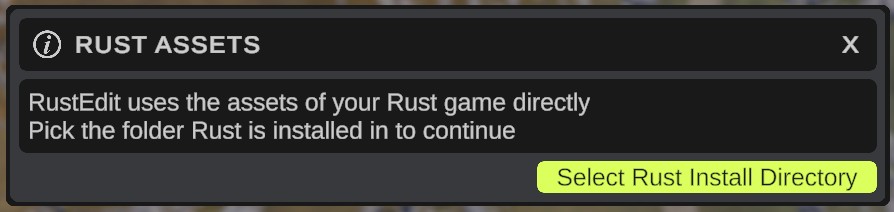
- The first time, the Rust Assets dialog opens. It says that RustEdit uses the assets of your Rust game directly.
- Click Select Rust Install Directory.
- In the folder browser, pick the folder Rust is installed in: the folder in your Steam library that has the
Bundlesfolder in it.- If RustEdit finds Rust's files there, the dialog closes and loading starts.
- If it does not, the dialog says The selected directory is not a valid Rust client install directory. Click Select Rust Install Directory again and pick the right folder.
- Wait while RustEdit loads. The loading screen shows each step. The first load reads all of Rust's content, so it can take a while.
When loading is done, RustEdit opens with an empty map. The default layout shows the Hierarchy on the left, the Scene view in the middle, the Content Browser and Notifications under it, and the Inspector on the right. See The interface.
RustEdit remembers the Rust folder. The next start goes straight to loading.
The interface follows your Windows display scaling. If the text is too small or too large, open , pick Interface, and change Scale. See Settings.
Use a different Rust install
RustEdit saves the Rust folder as the Rust Install Location setting in . To pick another Rust install:
- Open and pick Paths.
- Click the reset icon at the end of the Rust Install Location row. The field is now empty.
- Restart RustEdit. The Rust Assets dialog opens.
- Click Select Rust Install Directory and pick the other Rust folder.
The setting holds the path of the Bundles\Bundles file inside the Rust folder, not the Rust folder itself. If you pick the Rust folder with the folder button in Settings, RustEdit does not find Rust's files at the next start and shows the Rust Assets dialog. Pick the Rust folder there again, and RustEdit saves the right path.
Files RustEdit keeps next to the app
RustEdit keeps these folders in the folder it is installed in:
| Folder | What is in it |
|---|---|
Configuration | Settings (configuration.json), color schemes, panel layouts, render resolutions and your RustEdit license. |
Localization | The language files. See Language. |
Logs | log.txt with the messages of this run, and log_backup.txt with the run before. |
CustomMonuments | Your custom monuments. |
Brushes, CustomStamps, PrefabPalettes, LootPresets, VendingPresets, CustomNodes, CustomPrefabFields, Autosave | Brushes, stamps, prefab brush lists, loot and vending profiles, terrain graph custom nodes, custom data manifests and autosaves. |
You can move most of these folders. See Settings > Paths.
Back up the Configuration and CustomMonuments folders before you move RustEdit to another computer. Your maps are wherever you saved them. The license does not move with the files: sign in again on the new computer.
Sign in to unlock RustEdit Plus or Pro
Most of RustEdit is free. To use RustEdit Plus or RustEdit Pro features, sign in with the RustHQ account that has the subscription.
- Open .
- Click Sign In With RustHQ. Your web browser opens the RustHQ sign-in page.
- Sign in on the website. The dialog says Finish signing in in your browser. RustEdit waits for it.
- Go back to RustEdit. The dialog says Signed in as and your name.
RustEdit then gets your RustEdit license for this computer. The dialog shows it on a line such as RustEdit license: RustEdit Plus, until and a date. Locked features unlock within a second. You do not have to restart.
If the browser page closed before you finished, click Open The Page Again. To stop, click Cancel.

How the license works
- The license is kept on this computer. RustEdit works offline until the license ends.
- When the license ends, RustEdit asks RustHQ for a new one by itself. Your features keep working for 3 days while it does.
- If you renewed your subscription on the website, open and click Refresh.
- Sign Out removes the license from this computer.
For more about the account, see Account and sign-in.
Troubleshooting
| Problem | What to do |
|---|---|
| Insufficient Permissions when RustEdit starts | RustEdit cannot write to its own folder. Move the RustEdit folder to a place you own, such as your Documents folder, or run RustEdit as administrator. |
| The Rust Assets dialog comes back at every start | RustEdit cannot find Rust's files at the saved place. Pick the Rust folder that has the Bundles folder in it. |
| An Error! dialog during loading | See Common problems. |