Content Browser
The Content Browser lists everything you can place on a map: every Rust prefab, the spline shapes, your monuments and the prefabs sold on the RustHQ Marketplace. Find what you need by folder or by search, look at it in the preview, then drag it into the scene view.
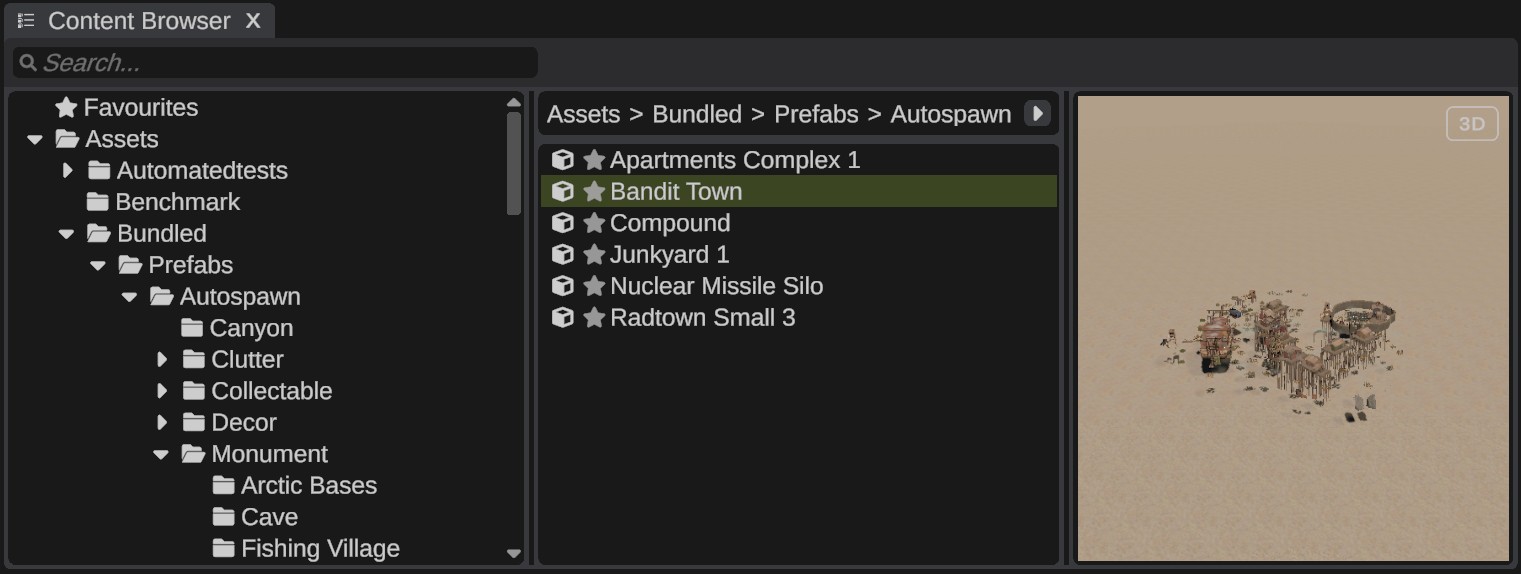
Open the Content Browser
The Content Browser is docked under the scene view in the default layout. To open it, click the Content Browser button on the toolbar, or open .
The panel has a folder tree, a list of the open folder's contents and a preview. Above the list, a path shows where you are: click a folder name in it to go back up.
Folders
The tree has these top folders:
| Folder | What it holds |
|---|---|
| Favourites | The prefabs and monuments you starred. See Favorites. |
| Assets | Every Rust prefab you can place, in Rust's own folders. RustEdit reads them from your Rust install. |
| Splines | Spline shapes: Empty, Linear, Circle, Square and more. See Splines. |
| Monuments | Your monuments: the files in your Custom Monuments folder, in its sub folders. See Monuments. |
| Procedural | Shows only while you edit a monument: the parts that tell Rust's map generator where the monument may spawn. See Monument attributes. |
| RustHQ Marketplace | Prefabs sold by the community on rusthq.com. See RustHQ Marketplace. |
- Click a folder to open it. Double-click it to open it and expand it in the tree.
- Click the arrow beside a folder to expand or collapse it.
- In the list, folders come first, then items, each in A to Z order.
Names are shown in words: "rock_formation_small.prefab" shows as "Rock Formation Small".
Search
Type in the Search... box. The search runs one second after you stop typing.
- It finds items whose name or path has the text. Case, spaces and symbols are ignored, so "rockformation" finds "Rock Formation Small".
- It searches the Assets, Splines and Monuments folders (and Procedural while you edit a monument). When the Search The Marketplace setting is on, it also finds marketplace products by name, tagline, author or tag.
- Results show as one list. The path line says
Searching for "...". - To find where a result is, right-click it and click Show in Folder.
- To end the search, empty the box, click a folder, or right-click empty space and click Clear Search.
Previews
Click a prefab to see a picture of it in the preview. RustEdit draws each prefab once and keeps the picture in the Images/PrefabPreviews folder next to the app, so it shows at once the next time. Monument previews are drawn from all their parts and are not kept on disk.
A prefab with nothing to see, such as a spawner, has no picture. Folders and splines have no preview either.
The 3D view
Click 3D at the top right of the preview to turn the prefab around in a live view. The setting stays on for the next prefabs you click, until you restart RustEdit.
| Mouse | What it does |
|---|---|
| Left drag | Turns the view around the prefab. |
| Right or middle drag | Moves the view. |
| Mouse wheel | Zooms in and out. |
| Double-click | Resets the view. |
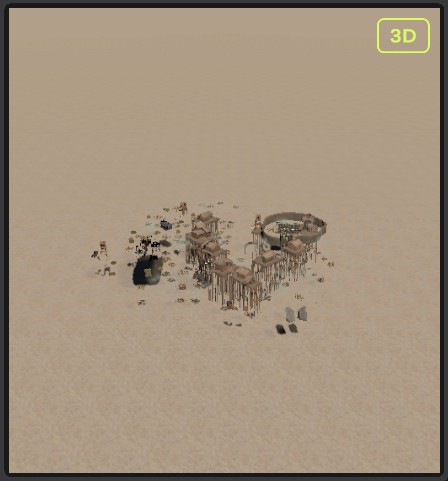
Place a prefab
Drag an item from the list into the scene view, or double-click it. See Placing prefabs.
Favorites
Click the star on a row to add the item to Favourites. Click the star again to remove it. You can also right-click a row and click Add to Favourites or Remove from Favourites. Rows inside the Favourites folder have no star: remove them with the right-click menu.
Prefabs and monuments can be favorites. Your favorites are saved in Configuration/favourites.json next to the app, so they stay when you restart. A monument favorite whose file is gone is removed.
The right-click menu
Right-click a prefab or monument:
| Item | What it does |
|---|---|
| Place in Scene | Places the item in the middle of the view. |
| Edit Monument | Monuments only: opens the monument file for editing. See Edit a monument. |
| Add to Prefab Brush | Adds the prefab to the Prefab Brush list. Shows while the Prefab Brush panel is open. |
| Replace this prefab / Replace with this prefab | Fills a slot of Replace Prefab. Shows while that panel is open. |
| Select in Scene | Selects every placed copy of the item. Only when copies are placed. |
| Add to Favourites / Remove from Favourites | Stars or unstars the item. |
| Show in Folder | Opens the item's folder and selects it. Only in search results and in the Favourites folder. |
| Copy Path | Copies the item's path to the clipboard. |
Right-click a spline shape or a Procedural item for Place in Scene.
Right-click a folder for Open, Expand All, Collapse All and, for folders under Assets, Copy Path.
Right-click empty space in the list:
| Item | What it does |
|---|---|
| Clear Search | Empties the search box. |
| Collapse All | Collapses every folder in the tree. |
| Refresh Monuments | Reads your Custom Monuments folder again, and updates placed copies of monuments whose file changed. Use it after you copy monument files into the folder from outside RustEdit. |
RustHQ Marketplace
The RustHQ Marketplace folder lists prefabs sold by the community on rusthq.com. You can look at the list without signing in.
Click the folder to see your account line and the number of products, with Sign In (or Account), Refresh and Open On RustHQ buttons. Click a product to see its details in the preview area: author, price, version, stars and notes.
A badge after each product's name shows its state: the price ("Free" or an amount), the download progress, "Update", "Downloaded", "Owned" or "Yours".
- Sign in to your RustHQ account. See Account and sign-in.
- Click a product.
- Click Download for a free or bought product, or Buy On RustHQ to buy it on the website. RustEdit downloads the product into your Custom Monuments folder, under Marketplace. It shows in the Monuments folder of the Content Browser, ready to place.
When a new version is out, the product shows "Update" and the button says Update To v.... Remove Download deletes the downloaded files. Copies you placed in your maps stay, but are empty until you download the product again.
See Browse and download for more.
Settings
| Setting | What it does |
|---|---|
| Marketplace > Search The Marketplace | The content browser's search also finds prefabs sold on rusthq.com. On by default. |
| Paths > Custom Monuments | The folder of your monuments. When no folder is set, RustEdit uses the CustomMonuments folder next to the app. Needs a restart. |
| Paths > Rust Install Location | Where Rust is installed. The Assets folder comes from it. Needs a restart. |
See Settings.
Troubleshooting
| Problem | What to do |
|---|---|
| A monument file you copied in does not show. | Right-click empty space in the list and click Refresh Monuments. |
| A preview looks out of date after a Rust update. | RustEdit has no command to draw the pictures again. Close RustEdit and delete the Images/PrefabPreviews folder next to the app. RustEdit draws each picture again the next time you click the prefab. |
| A prefab has no picture. | Prefabs with nothing to see, such as spawners and triggers, have none. See Placeholders. |