Linked Monuments
A monument you place on a map stays linked to its file, like a prefab in Unity. Its parts come from the file. When you change and save the monument, every placed copy updates. In the Hierarchy, placed monuments and their parts show in blue.
How to place a monument
- In the Content Browser, open the Monuments folder. Its folders are the folders inside your Custom Monuments folder.
- Drag a monument into the scene view. You can also double-click it, or right-click it and click Place in Scene.
- Move, turn and scale the placed monument like any prefab.
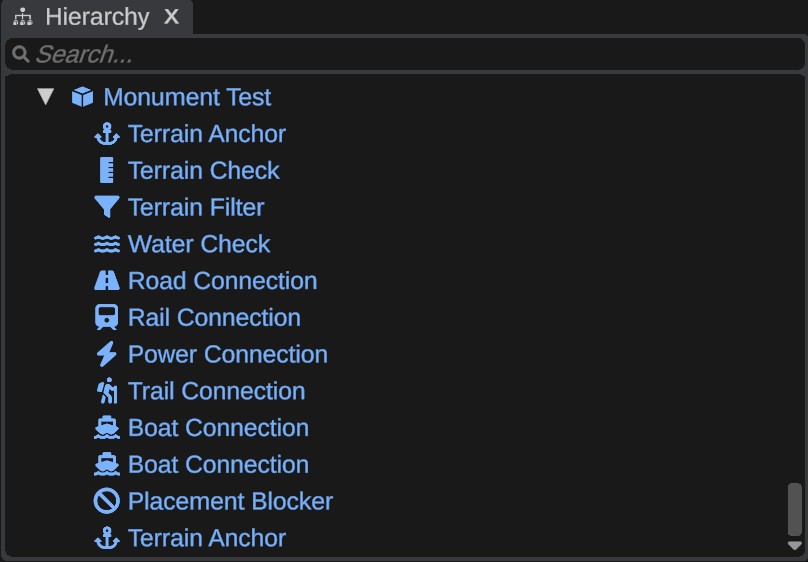
Working with a placed monument
A placed monument is one object. Its parts follow it.
- A click on any part in the scene view selects the whole placed monument. When monuments are inside each other, it selects the outermost one.
- In the Hierarchy, you can select a part to look at it. You cannot move, delete, copy, rename or re-parent it, and you cannot drop other entities into a placed monument.
- Lock and hide work on the placed monument and all of its parts.
- Duplicate and Delete work on the whole placed monument.
A part's own settings are not saved with the map. To change a part, edit the monument.
Right-click menus
On a placed monument's row, the Hierarchy menu adds:
- Edit and the monument's name: opens the monument on top of the map. See Create and edit monuments.
- Show in Content Browser: shows the monument file in the Content Browser.
- Unpack and Unpack Completely: see Unpack a monument.
On a part's row, the menu has:
- Part of and the monument's name, at the top.
- Edit and the name of the monument the part is in.
- Focus and Show in Content Browser.
- Select Monument: selects the outermost placed monument the part is in.
- Unpack Monument: unpacks that monument.
In the Content Browser, right-click a monument and click Select in Scene to select every placed copy of it.
The monument's terrain
When a monument saves terrain, each placed copy puts that terrain onto the map, faded by the monument's blend map. The terrain is live:
- It moves, turns and scales with the placed monument. The heights are kept from the monument's pivot, so moving the monument up or down moves its ground too.
- It goes away when you delete the placed monument, and comes back when you undo.
- It updates when the monument's saved terrain changes.
Select the placed monument to see the Monument Terrain panel in the Inspector. It has an Apply switch for each map the monument saved, all on for a newly placed monument. Turn one off to leave that map of the terrain alone.
Bake writes the placed monument's terrain into the map's terrain for good, and turns its Apply switches off. After a bake, moving the monument no longer moves its ground.
Bake is one undo step. Ctrl+Z takes the terrain back out of the map and sets the Apply switches back as they were, so the monument's ground is live as before.
When placed monuments update
Placed monuments build their parts again from the file:
- when you save the monument in RustEdit and go back to the map,
- when you open a map that has placed monuments,
- when you right-click empty space in the Content Browser and click Refresh Monuments. Use this after you copy monument files into the Custom Monuments folder from outside RustEdit.
Unpack a monument
Unpacking breaks the link. The parts stay where they are as plain entities, under a group with the monument's name. You can then change them one by one, and they are saved with the map. The file no longer changes them.
- Unpack unpacks the selected placed monuments. Monuments inside them stay linked.
- Unpack Completely also unpacks every monument inside them.
- Unpack Monument, on a part's menu, unpacks the monument the part is in.
Unpack is one undo step. Ctrl+Z links the monument again.
An unpacked monument no longer puts its terrain onto the map: its ground goes away. To keep the ground, click Bake in the Monument Terrain panel before you unpack.
Saving, sharing and exporting maps
- A saved map keeps only a link to each placed monument, with its position, rotation, scale and Apply switches. It does not keep the parts.
- The link is the monument's path inside the Custom Monuments folder. To open the map on another computer, put the monument files in the same place in that computer's Custom Monuments folder.
- When a monument file is missing, the placed monument is empty and RustEdit logs a warning. Put the file back and click Refresh Monuments.
- An exported
.mapfile holds the parts as normal prefabs, and the monument's terrain as part of the map's terrain. A server needs no monument files.
In a multiplayer session, the monuments the map uses are sent to everyone who does not have the same file. A monument you get this way is kept in memory only, never written to your folder. You cannot open it to edit, and it stays packed when you try to unpack it. When the session ends, placed monuments use your own files again.