Join a Session
RustEdit ProWhen you join a session, RustEdit connects to the host's computer, replaces your map with the host's map, and sends your changes to everyone.
Before you start
- Get the host's address and port, for example
192.168.1.20:28090, and the password if the session has one. The host copies the address from the Share section. See Host a session. - Save your own map. Joining replaces it.
How to join
- Open .
- In Session, type Your Name. The others see this name.
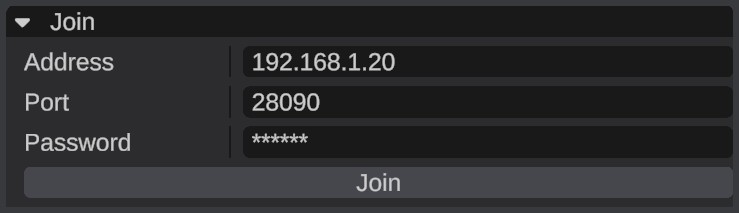
- In Join, paste the host's address in Address. When you paste
address:port, RustEdit puts the port in Port for you. The default port is28090. - Type the session's Password, or leave it empty if the session has none.
- Click Join. If your map has unsaved changes, RustEdit asks first: "Joining replaces this map with the host's map. Your unsaved changes will be lost. Join anyway?"
- The status shows "Connecting to the host", then "Getting the host's map" while the map and its files arrive and load.
- When the status says "In a session", you are in. The Notifications panel says "You joined the session. Changes you make now go to everyone".
While you are in a session
- Edit as usual. Your changes go to the others, and theirs come to you.
- Other people's cameras show in the scene view with their names. In People, click a person to move your camera to where they are looking from.
- You cannot select an object that somebody else has selected.
- Your map has no file name. If you save, RustEdit asks where, and you save your own copy. The host keeps the session's map.
- Do not open or make another map: that leaves the session ("You opened another map"). You can open a custom monument to edit it, and you stay in the session.
See Multiplayer for everything that is shared and its limits.
Files you get from the host
Before the map, the host sends the files it needs that you do not have: the custom monuments placed on the map and custom data files.
- Custom monuments from the host stay in memory only. They are never written to your disk, and you cannot open or unpack them. When the session ends, RustEdit forgets them.
- Custom data files are saved into your custom data folder when you do not have them.
- When you have a different version of a file, RustEdit keeps yours and warns you.
warning
If you save your copy of the map, monuments that came from the host are not on your disk. After the session, those placed monuments are empty on your computer. Ask the host for the monument files if you need them.
Leave the session
Click Leave in Session. Your copy of the map stays open.
The session also ends for you when the host leaves, when your connection drops, or when your license no longer has RustEdit Pro.
Troubleshooting
| Message | What to do |
|---|---|
| "Could not connect to ... The host did not answer" | Check the address and port. The host must be hosting, and for internet sessions the host's router must forward the port. |
| "The password is wrong" | Ask the host for the password and type it again. |
| "The app versions differ. Yours is ..., the host has ..." | Install the same RustEdit version as the host. |
| "The host's licence does not have multiplayer now" | The host needs RustEdit Pro. |
| "Multiplayer needs RustEdit Pro" | Joining needs RustEdit Pro. See RustHQ Account. |
| "Your license does not include multiplayer now. It needs RustEdit Pro" | Your license ended or changed, so the session ended. Renew RustEdit Pro, click Refresh in , then join again. |
| "Your map was not the same as the host's" | RustEdit found a difference and put in the host's version. Nothing to do. |
| "Your ... map is another size than the host's. Join again to get the host's map" | Leave, then join again. |