Color Schemes
A color scheme sets the colors of RustEdit's interface: panels, text, buttons, fields, messages and some markers in the scene view. Pick one of the built-in schemes, or change the colors and save your own.
Pick a scheme
- Open . The Color Scheme dialog opens.
- Pick a scheme in Current Scheme.
The colors change at once. RustEdit starts with this scheme from now on.
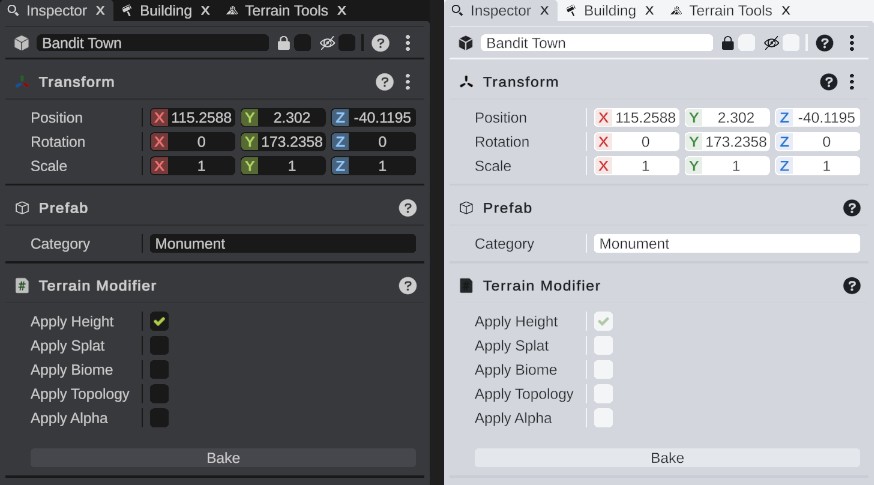
RustEdit has these built-in schemes:
| Scheme | What it looks like |
|---|---|
| Default | Dark gray panels with a light green-yellow accent. |
| Light | Light panels with dark buttons and dark text. |
Make your own scheme
- Open .
- Pick the scheme to start from in Current Scheme. Its name goes into Save Scheme.
- Under Colors, click a color to change it. The interface shows the change at once.
- Type a new name in Save Scheme. Use letters and numbers only.
- Click the save icon next to the name.
Notifications says [ColorScheme] You have saved the color scheme and the name. Your scheme is now in the Current Scheme list, and RustEdit starts with it.
If you close the dialog without saving, your color changes are undone.
Save under a new name, not over a built-in scheme. A RustEdit update can put back the colors of the built-in schemes. Your own schemes keep their colors. When an update adds a new color, your schemes get it from the Default scheme.
The colors
The colors are in groups. The color fields have no alpha: every color is solid.
| Group | Colors | Where they show |
|---|---|---|
| Panels | Background, Foreground, Header, Popup | Background is the panel body. Foreground is cards, boxes and list rows on it. Header is the lines between inspector sections. Popup is the panel of a popup with fields in it, such as the color picker. |
| Text and Accent | Text, Highlight, Highlight Text | Text is the normal text. Highlight is the accent color: switches that are on, selected rows, the main button. Highlight Text is an icon or text drawn on the accent color. |
| Buttons | Button, Button Hover, Red Button, Red Hover, Red Text, Menu, Menu Text | Button is a normal button, Button Hover is the same under the mouse. The red colors are for buttons that delete things. Menu and Menu Text are menus and tooltips. |
| Fields | Input Field, Input Field Selection, Dropdown, Toggle, Slider Bar, Slider Handle, Scrollbar Area, Scrollbar Handle | Text boxes, selected text, dropdowns, check boxes, sliders and scroll bars. |
| Messages | Error, Warning, Info | Message icons and text, for example in Notifications. |
| Axes | X, Y, Z | The colors of the X, Y and Z axes. |
| Scene View | Collection, Monument Anchor, Monument Check, Monument Filter, Monument Water, Monument Path, Monument Blocker | Collection colors the name and icon of a placed custom monument and its parts in the Hierarchy, and the path and line of the monument bar above the scene view. The Monument colors are the markers of monument attributes: terrain anchors, terrain checks, terrain filters, water checks, path connections and placement blockers. |
Where schemes are saved
All schemes are in Configuration/colorscheme.json in RustEdit's folder. The dialog has no import or export. To share a scheme, copy its entry from that file into the same file on another computer while RustEdit is closed.