Vending Profiles
A vending profile is the list of orders an NPC vending machine sells, such as the machines at Rust's safe zones. You make it in the Vending Profile Editor and save it as a .vprof file. Then you pick it in a machine's Vending Machine panel. The map carries a copy of every profile its machines use.
On the server, the RustEdit 2 server extension sets up each machine's orders from its profile. Without the extension, machines keep Rust's own orders. See The RustEdit 2 server extension.
Open the editor
Click . The editor opens as a panel, which you can dock like any other panel. It opens the profile you had open last time, or a new one.
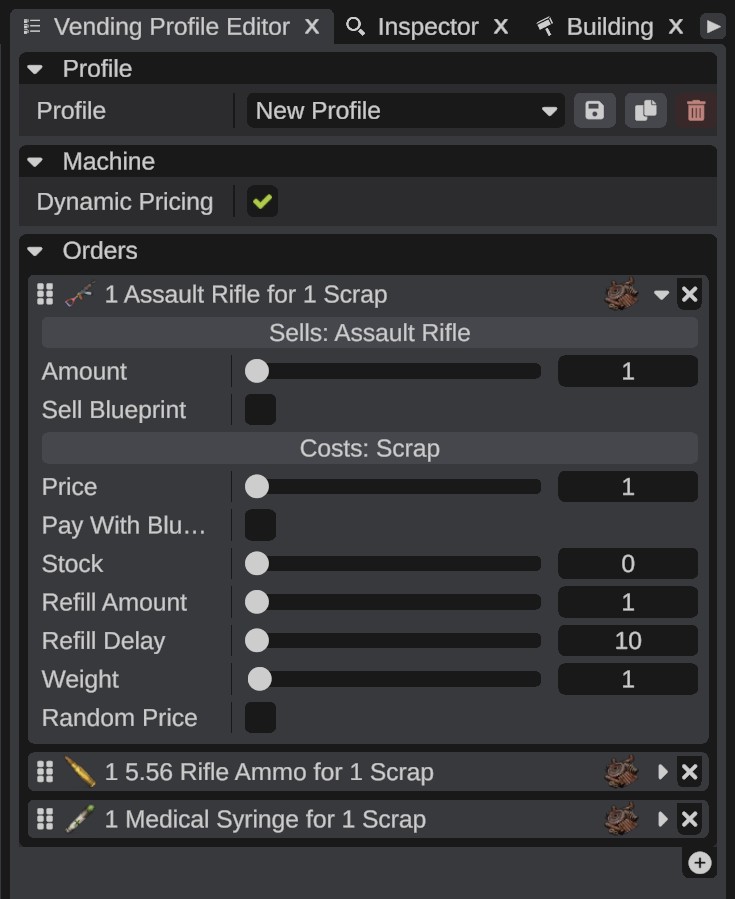
How a machine uses a profile
A machine shows 7 orders at most. If the profile has more, the machine picks 7 of them by their Weight each time it sets up its orders. Each order has a stock of purchases, which comes back over time.
How to make a profile
- Click .
- In the Profile list, pick New Profile. An empty profile shows.
- Under Orders, click +. The item picker covers the panel.
- Click the item the order sells. The picker closes. The new order sells 1 of the item for 1 Scrap.
- Open the order's card and set its options.
- Add more orders the same way.
- Click the Save icon next to the Profile list. Type a name and confirm. RustEdit writes the file and logs "Saved the profile ...".
In the item picker, type in the search box or pick a Category to find an item. The search finds an item by its name or its short name, for example scrap.
Machine options
| Option | What it does |
|---|---|
| Dynamic Pricing | On: Rust raises the price of orders paid with scrap that sell a lot, and lowers it for the others. Off: the prices stay as you set them. New profiles have it on. |
Order options
Each order is a card. Its header shows what the order sells and what it costs, for example "1 Rifle for 1 Scrap". Drag the grip to change the order of the list, click the arrow to fold the card, and click the remove button to take the order out.
| Option | What it does |
|---|---|
| Sell Item | The item the machine sells. The button shows it as "Sells: ...". Click it to pick another item. |
| Amount | How many of the item one purchase gives, from 1 to 10000. |
| Sell Blueprint | Sells the item's blueprint instead of the item. |
| Currency | The item the buyer pays with. The button shows it as "Costs: ...". Click it to pick another item. |
| Price | How many of the currency item one purchase costs, from 1 to 10000. With Random Price on, the game rolls the price instead. |
| Pay With Blueprint | The buyer pays with the currency item's blueprint. |
| Stock | The most purchases the machine holds of this order, up to 100. 0 uses the machine's own starting stock. |
| Refill Amount | How many purchases come back at each refill, from 1 to 100. |
| Refill Delay | Seconds between two refills, up to 3600. New orders start at 10. |
| Weight | How likely this order is picked when the profile has more orders than the machine shows (7), from 0 to 100. 0 is never picked. |
| Random Price | The game rolls the price when the machine sets up its orders, instead of using Price. Turning it on shows the three rows below. |
| Price Range | The lowest and the highest price the roll can give, rounded to 5. When you first turn Random Price on, the range goes from the price up to about twice the price. |
| Low Price Chance | The chance, in percent, that the roll gives a very low price instead. |
| Low Price Range | The lowest and the highest very low price. |
Give a machine a profile
- Select one or more NPC vending machines.
- In the Inspector, find the Vending Machine panel.
- In Custom Vending Profile, pick the profile.
None gives the machine Rust's own orders again.
Manage profiles
Profiles work the same way as loot profiles. The Profile list shows New Profile first, then the saved profiles, A to Z. The icons next to it are Save, Save As and Delete. See Manage profiles on the loot profiles page.
RustEdit saves vending profiles in the VendingPresets folder next to the app. To use another folder, set it in , under Paths > Vending Presets. A change to this setting needs a restart.
Profiles in the map
- When you save a scene or export a map, RustEdit writes a copy of each profile that its machines use into the map.
- When you open a map, its profiles come with it. A profile that has no file on your computer shows as (from map) in the list. Click Save to write its file.
- If a file on your computer has the same name as a map's profile, RustEdit uses the file.
- In a multiplayer session, RustEdit sends the profiles that machines use to the other people.
A profile that RustEdit cannot find when you save or export is left out of the map. The machines that use it get Rust's own orders in the game.
Troubleshooting
| Problem | What to do |
|---|---|
| The log says "The vending profile ... was not found. The ... vending machines that use it keep their default orders" | The profile's file is missing and the map has no copy. Make the profile again under the same name, or pick another profile for the machines. |
| An order shows (not found) | Your Rust install has no item with that short name, for example after a Rust update. Click Sell Item or Currency and pick the new item. |
| A machine has no Vending Machine panel | Only NPC vending machines have it. A vending machine that players place has no profile. |
| A machine shows only some of the orders | A machine shows 7 orders at most. Give the orders you want most a higher Weight, or remove some. |