The Scene View
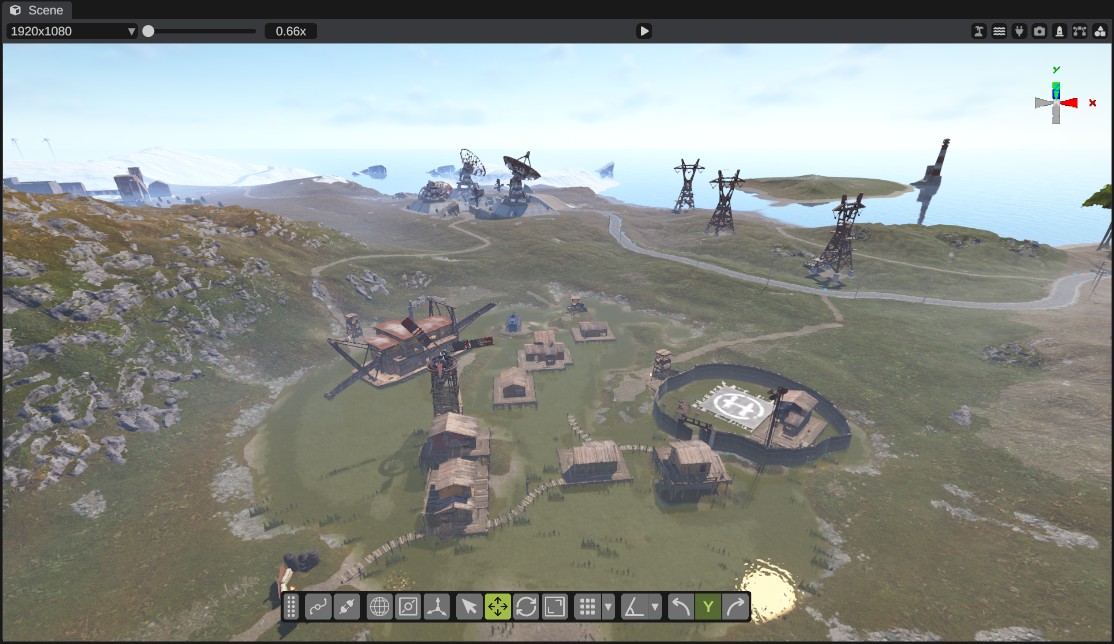
The Scene panel is the 3D view of your map. You fly the camera through it, select objects and use every tool here.
Move the camera
Point the mouse at the scene view and hold the right mouse button. While you hold it:
| Input | What it does |
|---|---|
| Move the mouse | Looks around. |
| W A S D | Flies forward, left, back and right. |
| Space / C | Flies up and down. |
| Hold Shift | Flies faster. |
| Scroll | Moves forward and back. Hold Shift to move further with each step. |
| F | Moves the camera to the selected objects. |
| L | Turns a light on the camera on or off. |
Let go of the right mouse button to stop. While you hold Ctrl, the movement keys do not move the camera, so shortcuts such as Ctrl+D are safe.
Other ways to move the camera:
- Double-click an object in the Hierarchy, or right-click it and click Focus.
- Double-click a place on the Map panel.
- Press a selection group number twice. See Keyboard shortcuts.
The camera gizmo
The small axis gizmo in the top right corner of the view shows which way the camera looks. Click one of its arms to turn the camera to look along that axis, for example straight down from above. While the camera looks along an axis, Space and C move it along the view's up and down.
Camera settings
Open and pick Camera to change the field of view, the view distance, the fly speeds, inverted mouse look and the place of the camera gizmo. See Settings.
The scene view header
The bar at the top of the scene view has the render resolution, the zoom of the picture, the view buttons and the play button.
Render resolution and scale
RustEdit draws the scene at a fixed size, the render resolution, then fits the picture into the panel.
- The resolution list sets the size of the picture:
800x600,1024x768,1440x900,1920x1080(the default) or2560x1440. A bigger size is sharper but slower to draw. - Pick Add at the end of the list to add your own size. The Add Render Resolution dialog asks for a Width and a Height. Click Ok.
- The scale slider zooms the picture in the panel. At its lowest it fits the whole picture into the panel. The number next to it shows the zoom, for example
1.00x.
RustEdit remembers the resolution you picked and your own sizes.
If the scene view is slow, pick a smaller resolution first. Then see Graphics settings.
View buttons
Each button switches something on or off. A dimmed icon means it is off. Hover over a button to see what it does.
| Button | What it does |
|---|---|
| Toggle Water Visibility | Shows or hides the water. |
| Show placeholders | Shows or hides placeholders. Hidden placeholders cannot be clicked. RustEdit remembers this setting. |
| Show all splines | On: every spline is drawn. Off: only the selected spline objects are drawn. See Splines. |
| Show all procedural points in an opened monument | On: all monument attributes of an open monument are drawn. Off: only the selected ones. |
| Toggle IO Connection Visibility | Shows or hides the IO wires. |
| Switch between the standard and the tropical world | Changes the terrain textures and the ocean color near the shore. See Tropical terrain. |
| Upload a screenshot of the scene view to the gallery RustEdit Plus | Takes a picture of the scene view for the Gallery. You must be signed in to RustHQ. |
The play button
The button in the middle of the header starts play mode RustEdit Plus. You walk the map as a player, from where the camera is. W A S D move, Shift sprints, Ctrl ducks, Space jumps and E uses things such as doors. Press Escape to free the mouse, then click the button again to stop.
While you play, the rest of the window is dimmed and locked. Without RustEdit Plus, the button is grayed out. Click it to see which tier it needs.
While a monument is open
When you open a custom monument to edit it, a bar shows over the scene view:
| Part | What it does |
|---|---|
| Back button | Closes the monument and goes back to the map, or to the monument you opened it from. If the monument has unsaved changes, RustEdit asks: Save, Don't Save or Cancel. |
| Path | Shows where you are, from the map to the open monument. |
| Save button | Saves the monument. A mark on it shows unsaved changes. |
| Publish button | Opens Publish To RustHQ for the monument. See Publish. |
The transform widget
The bar of buttons inside the scene view is the transform widget. It sets how the transform gizmo moves the selected objects.
- Drag its handle to move the widget.
- Right-click the handle and pick Horizontal or Vertical to turn it.
| Button | What it does |
|---|---|
| Selection tool | Selects only, no gizmo. Q |
| Movement tool | Moves the selection. W |
| Rotation tool | Turns the selection. E |
| Scale tool | Scales the selection. R |
| Space | Switches between global space (the world's axes) and local space (the selected objects' own axes). X |
| Pivot | Switches between center and pivot. Center puts the gizmo in the middle of the selected objects. Pivot puts it at the pivot point of the last selected object. Z |
| Center gizmo | Puts the transform gizmo in the middle of the screen. |
| Spline editing | Edits the knots of the selected spline. A spline object must be selected. See Editing splines. |
| Draw splines | Draws new splines in the scene view. Shows only while spline editing is on. |
| Sockets | Shows sockets. Drag from one socket to another to connect two prefabs. Hold Alt and click a connected socket to disconnect it. See Sockets. |
| Quick rotate | Turns the selection by 90 degrees around the picked axis, to the left or to the right. The axis starts as Y. |
For how the gizmo itself works, see Selection and transform.

Snapping
The transform widget has two snap rows.
| Option | What it does |
|---|---|
| Movement snap | Turns movement snap on or off. |
| Amount | The snap step in meters. The default is 1. |
| Mode | Local snaps each move as it happens, in steps of Amount. World snaps the result to the world: on the axes you move, the object's position becomes a whole number of Amount steps. |
| Rotation snap | Turns rotation snap on or off. |
| Degrees | The rotation step. The default is 1. |
Both snaps start off.
The scene view does not draw a grid. World snap still puts positions on whole steps of Amount. The grid button on the Map panel only draws a grid on the map image.