Terrain Resolution
Terrain Resolution gives the map more or fewer pixels in its height map and its texture maps. The map keeps its size, and no prefab or path moves.
A higher resolution gives finer detail, and a bigger file. A lower one makes the file smaller.
Before you start
- Save the map. The change clears the undo history. If you do not like the result, brings back the saved map.
- Go back to the map if a monument is open, and apply or stop any terrain graph preview.
- In a multiplayer session, only the host can change the resolution.
How to change the resolution
- Click . The dialog opens with the map's resolutions picked.
- Pick a Terrain Resolution and a Texture Resolution.
- Click Apply. RustEdit asks you to confirm, because the map loads again and the undo history is cleared.
- Click Confirm. RustEdit makes the maps at the new resolutions and loads the map. The Notifications panel shows the new resolutions.
The map keeps its file and password, but it is not saved yet. Save it to keep the change.
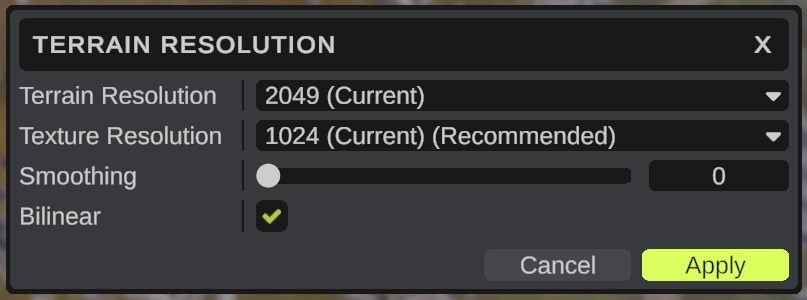
Options
| Option | What it does |
|---|---|
| Terrain Resolution | The resolution of the height map: 513, 1025, 2049 or 4097. (Current) marks the map's resolution now, (Recommended) the best fit for the map's size. |
| Texture Resolution | The resolution of the splat, biome, topology and alpha maps: 512, 1024, 2048 or 4096. Marked the same way. |
| Smoothing | Blur passes over the heights after the change, from 0 to 10. Softens steps when the resolution goes up. The default is 0. |
| Bilinear | On: blend between pixels. Off: take the nearest pixel. On by default. |
If you pick the resolutions the map has now and leave Smoothing at 0, RustEdit says "The map already has these resolutions" and changes nothing. With the same resolutions and Smoothing above 0, it only smooths the heights.
What changes
- The height map and the texture maps get the new resolutions.
- Custom topology maps get the new texture resolution too.
- Topology is copied from the nearest pixel, so its areas keep sharp edges.
- The map's size, its prefabs and its paths do not change.
Undo
You cannot undo the change: the undo history is cleared. To go back, use before you save.
Tips
- Use (Recommended) unless you need more detail. A higher resolution makes the file bigger.
- To change the size and the resolution at once, use Resize Map.