Cliff Brush
RustEdit ProThe Cliff Brush places Rust's cliff and rock prefabs the way Rust's map generator does. Draw a line along the top of a slope and a chain of linked cliff pieces follows it, or brush over an area to scatter single rocks.
Before you start
- The Cliff Brush needs RustEdit Pro. Without it, the panel shows which tier it needs. See Tiers.
- The cliff sets come from Rust's own files. If the Set list says "No cliff sets found", check that RustEdit has loaded Rust's content.
Open the Cliff Brush
- Click the Cliff Brush button on the toolbar.
- Click Line or Area at the top of the panel. The brush turns on in the scene view.
- To turn it off, click the button that is on again, or close the panel.
Only one scene view tool works at a time. Turning on the Cliff Brush turns off the Terrain Tools, the Prefab Brush and the Building tool.
The two modes
| Mode | What it does |
|---|---|
| Line | Draw a line along the top edge of a slope. A chain of linked cliff pieces follows it. |
| Area | Click and drag to place single cliff rocks under the brush. |
Pick a set
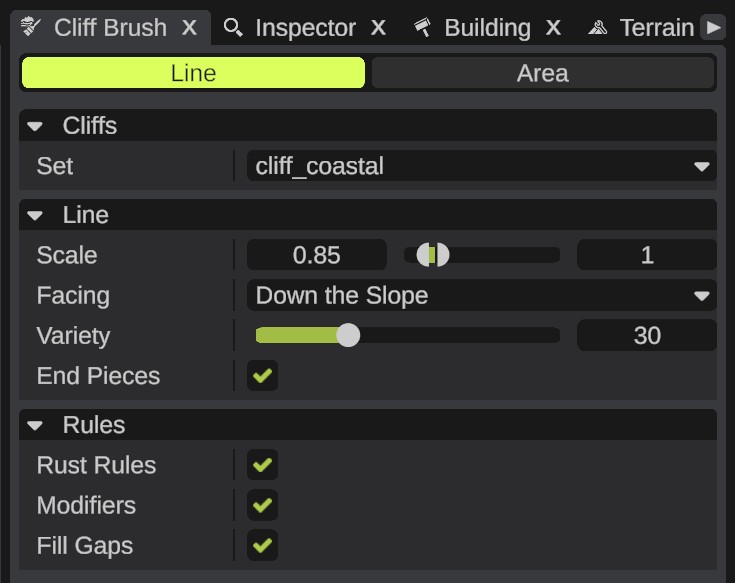
In the Cliffs section, pick a Set: a folder of Rust cliff prefabs. Line mode lists the sets whose pieces link together into chains. Area mode lists the sets of single rocks. The names are Rust's folder names, such as cliff_coastal.
When you pick a set, RustEdit sets Scale (line), or Distance and Dithering (area), to the values Rust's generator uses for that set. You can change them after.
Draw a line of cliffs
- Click Line and pick a set.
- Move the mouse over the top edge of a slope. A small ring shows where the line starts.
- Hold Mouse Left and drag along the edge. A white line follows the mouse. The chain of pieces shows as you draw:
- green outlines are the pieces,
- blue outlines are the end pieces,
- red crosses mark places where no piece fits.
- Let go of the mouse button. RustEdit places the pieces. The Notifications panel says how many were placed.
Press Esc while you draw to drop the line without placing it.
If parts of the line get no cliff, the Notifications panel says why when you let go, for example "the ground is too flat for Rust's cliffs". Many reasons tell you to turn off Rust Rules to allow it.
The pieces need ground that drops the way they face. Draw along the top edge of a slope, about as high as the pieces. On flat ground, sculpt a slope first with the height tools.
Line options
| Option | What it does |
|---|---|
| Scale | The scales a piece can get, from 0.5 to 3. Bigger pieces are tried first, like Rust's generator. |
| Facing | Which side of the line the cliff face looks at. Down the Slope faces down the slope, like Rust's generator. Left and Right face that side of the line, seen from where it starts. |
| Variety | From 0 to 100. At 0 the brush always takes the piece that follows the line best. Higher values pick more freely among the pieces that fit. The default is 30. |
| End Pieces | Closes each end of a chain with a piece that has one link. |
Paint an area of rocks
- Click Area and pick a set.
- Move the mouse over the terrain. A white ring shows the brush on the ground, and green outlines show the rocks it would place.
- Hold Mouse Left. Rocks are placed under the brush.
- Drag to place more. A new set of rocks is placed each time the brush has moved far enough.
- Let go of the mouse button.
Area options
| Option | What it does |
|---|---|
| Size | The width of the brush in meters, from 10 to 500. The default is 60. |
| Distance | The grid spacing in meters, from 1 to 50. One rock is tried at each grid point, like Rust's generator. |
| Dithering | How far a rock can move away from its grid point, in meters, from 0 to 25. |
Rules
The Rules section works in both modes.
| Option | What it does |
|---|---|
| Rust Rules | Also uses the slope, height, filter, water and volume checks of Rust's generator. On by default. |
| Modifiers | Turns on the terrain modifiers of each placed piece: the height, splat and topology changes Rust's cliffs make. On by default. |
| Fill Gaps | Raises the ground to meet the rock where a piece has a terrain footprint, like Rust's generator. On by default. |
Some rules always apply, with Rust Rules on or off:
- The terrain anchors of each piece: the ground must be where the piece needs it.
- Rust's spacing: each cliff and rock marks the ground around it, and a new piece does not stand on the marks of the cliffs and rocks already there. Pieces can still overlap, as they do in Rust.
With Modifiers on, each placed piece has its Terrain Modifier switches on. See Terrain Modifier.
Undo and edit
Each stroke is one undo step: Ctrl+Z removes all the pieces of the last line or area stroke. The placed cliffs are normal prefabs. You can select, move and delete them like any other prefab.
RustEdit keeps the Cliff Brush settings for the next time you start it.