Terrain Tools
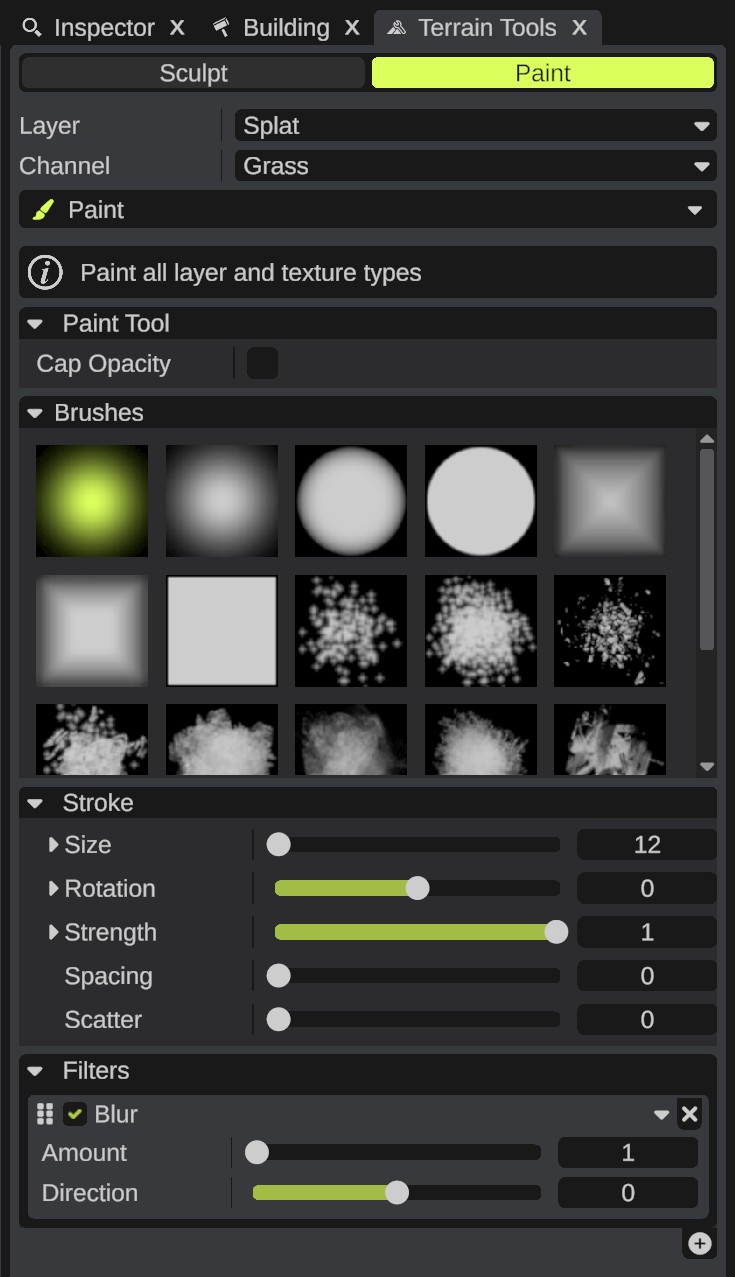
The Terrain Tools panel holds every brush that changes the terrain. Sculpt changes the height. Paint changes the splat, biome, alpha and topology maps. See Terrain overview for what each map is.
Open the Terrain Tools
- Click the Terrain Tools button on the toolbar. The panel opens. Only the Sculpt and Paint buttons show.
- Click Sculpt to change the height, or Paint to paint a map. The rest of the panel shows.
- To turn the brush off, click the button that is on again.
Only one scene view tool works at a time. Turning on Sculpt or Paint turns off the Prefab Brush, the Cliff Brush and the Building tool, and turning one of those on turns the Terrain Tools off.
Paint a stroke
- Turn on Sculpt or Paint.
- Pick a tool (see below).
- Move the mouse over the terrain. The brush outline shows on the ground. Most sculpt tools also show their result under the brush before you click.
- Hold Mouse Left and drag. The first stamp lands where you press. After that, a new stamp lands each time the mouse moves. A mouse that does not move does not keep painting.
- Let go of the mouse button. The stroke ends.
Some tools use keys while you click, for example Alt to lower with Raise/Lower Height. Each tool's page lists them. The tool's settings section also starts with a short text about the tool.
The panel
From top to bottom:
| Part | What it does |
|---|---|
| Sculpt / Paint | Turns the brush on in the scene view, for the height or for the other maps. |
| Layer | Paint only. The map to paint: Splat, Biome, Alpha or Topology. While a monument is open, Blend is added. Your custom topology maps come after these. |
| Channel | Paint only. The layer of the map to paint, such as Grass on the splat map or Road on the topology map. Hidden for Alpha and Blend, which have no layers. |
| Tool list | The tool in use. Click it to pick another one. |
| Tool settings | A short text about the tool, then the tool's own options, if it has any. |
| Brushes | The brush shape. See Brushes. |
| Stroke | Size, rotation, strength, spacing and scatter of the brush. See below. |
| Filters | Limits where the brush works, for example only on flat ground. See Filters. |
Some tools replace parts of the panel. For example, the Stamper has its own pictures and stroke settings, and Multi-Topology hides Channel.
Pick a tool
- Click the tool list. It opens under the row, with a search box and the tools in groups.
- Type part of a tool's name or group to filter the list. If nothing matches, the list says "No tool has this name".
- Click a tool. The list closes and the tool's settings show.
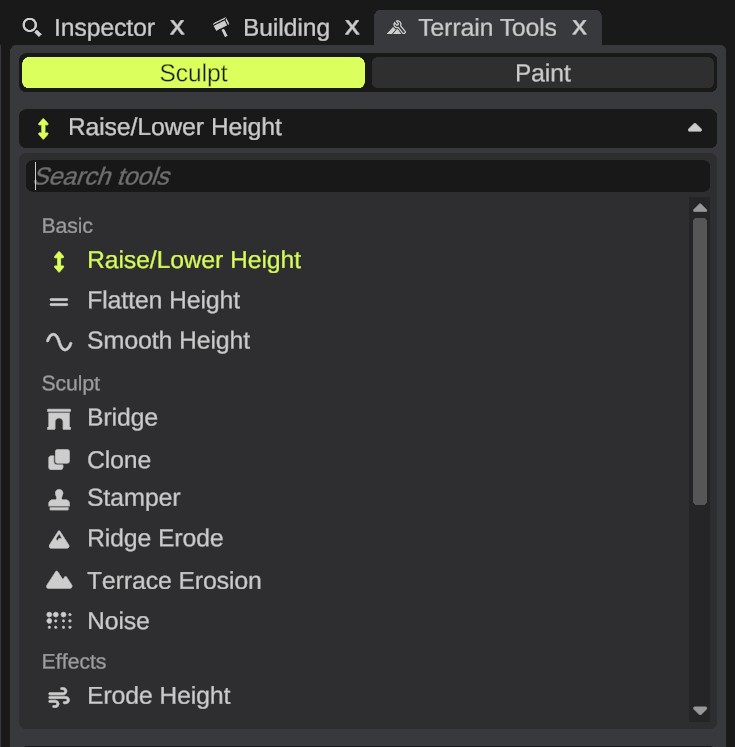
The tools depend on the mode and the layer:
- Sculpt: the groups Basic, Sculpt, Effects, Erosion and Transform. See Height tools and Clone and Stamper.
- Paint: the groups Basic and Conditional. Only the tools that work on the picked Layer show. See Paint tools.
Stroke settings
Open the Stroke section to set how the brush paints.
| Option | What it does |
|---|---|
| Size | The size of the brush, from 1 to 500 pixels of the map you edit: height pixels for Sculpt, texture pixels for Paint. The default is 5. |
| Rotation | The rotation of the brush, from -180 to 180 degrees. |
| Strength | How strong each stamp is, from 0 to 1. The default is 1. What strength means depends on the tool. |
| Spacing | The distance between two stamps along the stroke, in percent of the brush size, from 0 to 200. At 0, every mouse move stamps. |
| Scatter | How far each stamp can land from the cursor, in percent of the brush size, from 0 to 100. |
Size, Rotation and Strength have a fold arrow. Click it to show two more rows:
| Option | What it does |
|---|---|
| Jitter | A random change to the value for each stamp, in percent. For Size and Strength, 20 means each stamp is up to 20% smaller or bigger. For Rotation, 100 means up to half a turn either way. |
| Smooth Jitter | The random change follows a smooth pattern over time, so stamps close in time have close values. |
Jitter and scatter only change the stamps of a stroke. The brush outline shows the plain settings.
Each tool keeps its own stroke settings and its own filters. When you switch tools, the panel shows the settings you last used with that tool. RustEdit keeps them for the next time you start it.
Undo
Each stroke is one undo step.
- Ctrl+Z undoes the last stroke.
- Ctrl+Y redoes it.
When you let go of the mouse, RustEdit reads the changed map back from the graphics card. If you start a new stroke before it is done, the Notifications panel says "Syncing graphics data from GPU, please hold!" and the click does nothing. Wait a moment and click again.
Tips
- To see the exact values under the brush, hold Ctrl and right-click the terrain. The splat, biome, alpha, topology and height at that point show in the Notifications panel.
- In Paint mode with Biome picked, the terrain shows a color for each biome. With Topology picked, it shows where the picked topology layer is.
- The terrain tools change the map's own terrain. Prefab terrain changes are added on top. See How prefabs change the terrain.
Troubleshooting
Nothing happens when I click. Check that Sculpt or Paint is on, and that the mouse is over the terrain. A tool that needs a start point, such as Bridge or Clone, does nothing until you Shift-click to set one. The Notifications panel tells you why.
The brush is much smaller or bigger than I expect. The size is in pixels, not meters. See Map size and resolution.
The brush paints nowhere. A filter may be masking it out. Switch the filters off in the Filters list to test.