Hierarchy
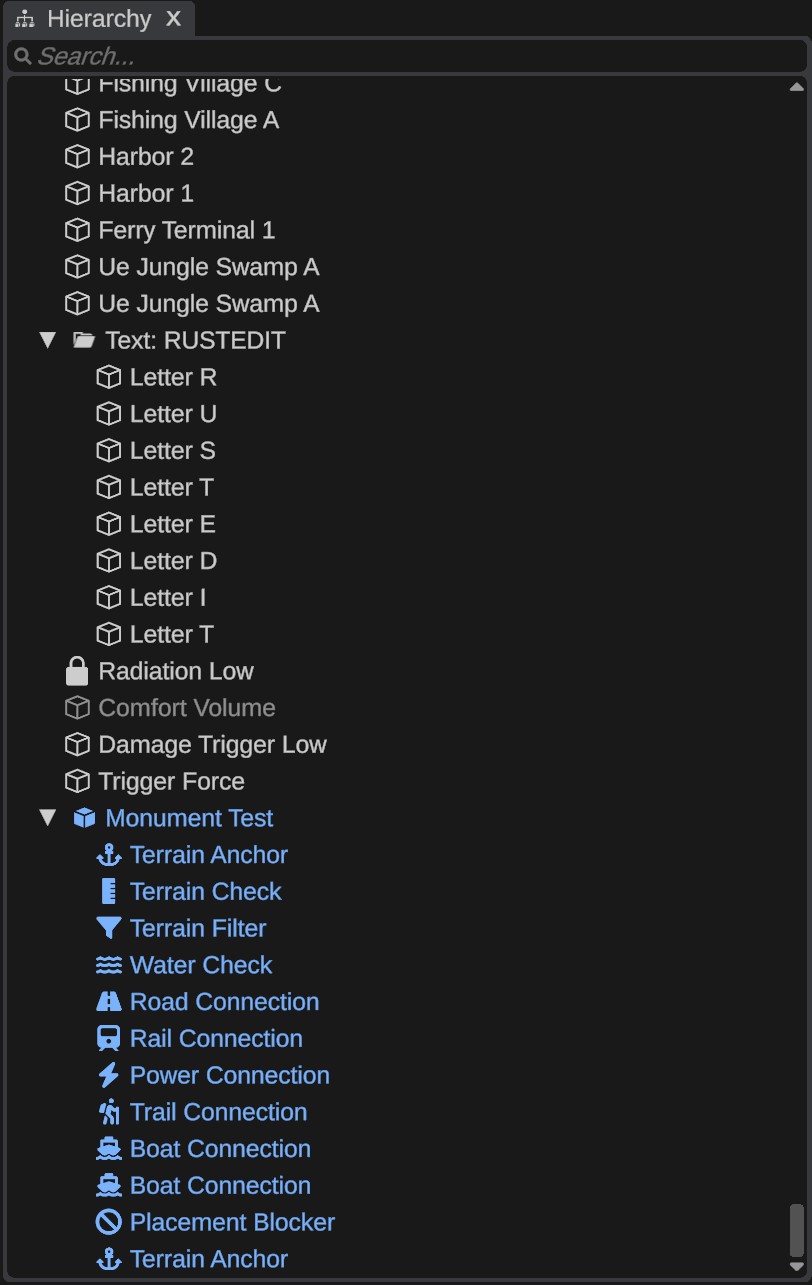
The Hierarchy panel lists every object in the scene: prefabs, splines, empty objects and placed monuments. Objects can hold other objects, like folders, so you can keep a big map in order. Use it to find and select objects, rename them, group them and lock or hide them.
Open the Hierarchy
The Hierarchy is docked left of the scene view in the default layout. To open it, click the Hierarchy button on the toolbar, or open .
What the list shows
- Each row is one object. Its name is the name you gave it, or else the prefab's name (the file name in words, for example "Rock Formation Small").
- The icon shows the kind of object: a cube for prefabs, a folder for empty objects, a spline icon for splines, a solid cube for placed monuments. Locked objects show a lock icon instead.
- Rows of placed monuments, and all their parts, are blue. You can change this color: it is Collection in the color scheme. See Color schemes.
- Hidden objects are dimmed.
- An arrow (▶ or ▼) shows on rows that have children. Click it to open or close the row. Alt+click the arrow to open or close everything under it too. Open and closed rows are saved with the scene.
When you select objects in the scene view, the Hierarchy opens their parents and scrolls to the last selected object.
Select objects
| Do this | To |
|---|---|
| Click a row | Select that object. |
| Ctrl + click | Add the object to the selection, or remove it. |
| Shift + click | Select every row from the last clicked row to this one. |
| Double-click a row | Move the camera to the object and its children. |
| Up / Down | Select the row above or below. Hold Ctrl to add it to the selection. |
| Ctrl+A | Select every row in the list. Rows inside closed rows are not included. |
The arrow keys and Ctrl+A work while the pointer is over the Hierarchy.
Delete, Ctrl+D and the lock and hide keys only work with the pointer over the scene view. In the Hierarchy, use the right-click menu.
Search
Type in the Search... box and press Enter. The list shows the objects whose own name, prefab name or prefab path has the text, as one flat list. Case, spaces and symbols are ignored. Empty the box to see the whole list again.
Rename an object
- Select one object.
- Click its row again, or right-click it and click Rename.
- Type the new name and press Enter. Press Esc to keep the old name.
An empty name gives the object its prefab name back. Renaming cannot be undone with Ctrl+Z. You can also rename in the Name row of the Inspector.
Group objects with empty objects
An empty object has no model. It is a folder: put other objects under it to keep them together, and move the group as one.
- Create Empty: right-click empty space in the Hierarchy. The new object goes at the top level, on the ground in the middle of the view (or 20 m in front of the camera).
- Create Empty Child: right-click a row. The new object goes under that row.
- Create Empty Parent: right-click a selected row. A new empty object is made where the selection's middle is, and the selected objects go under it.
Each of these is one undo step. The new object is selected, so you can rename it right away.
Groups are saved in the scene file. The exported map has no groups: Rust gets each prefab at its place in the world. Empty objects are not in the map.
Change the order and nesting
Drag rows to move them. All selected rows move together.
- Drop on the top edge of a row to put the objects above it.
- Drop on the bottom edge of a row (with no open children) to put them below it.
- Drop on the middle of a row to put them under it, as its last children.
A line shows where the objects go. Objects keep their place in the world. Press Esc to cancel the drag. Each move is one undo step. To move an object back to the top level, right-click it and click Unparent.
You cannot drop an object into a placed monument, and you cannot drag a monument's parts.
You can drag a row onto an object field in the Inspector to fill it with that object.
The right-click menu
Right-click a row to open its menu. If the row is not selected, it becomes the selection. The items work on all selected objects.
| Item | What it does |
|---|---|
| Edit ... | Opens a placed monument's file for editing. See Edit a monument. Only on placed monuments. |
| Rename | Renames the object. Only with one object selected. |
| Focus | Moves the camera to the selected objects. |
| Show in Content Browser | Shows the prefab or monument in the Content Browser. |
| Unpack / Unpack Completely | Breaks the link of a placed monument. See Placed monuments. |
| Convert to Monument | Saves the selected objects as a monument file. See Convert to monument. |
| Duplicate | Copies the selected objects. The copies go right after the originals and are selected. |
| Delete | Deletes the selected objects and everything under them. |
| Lock | Locks the objects and everything under them. Checked when all selected objects are locked. |
| Hide | Hides the objects and everything under them. Checked when all selected objects are hidden. |
| Create Empty Child | Adds an empty object under the clicked row. |
| Create Empty Parent | Puts the selected objects under a new empty object. |
| Unparent | Moves the objects to the top level. |
| Select Children | Selects the objects and everything under them, and opens their rows. |
| Expand All / Collapse All | Opens or closes every row under the selected objects. |
Right-click empty space for these items. Right-clicking empty space also clears the selection.
| Item | What it does |
|---|---|
| Create Empty | Adds an empty object at the top level. |
| Select All | Selects every object in the list. |
| Expand All / Collapse All | Opens or closes every row. |
| Unlock All | Unlocks every locked object. |
| Show All | Shows every hidden object. |
Lock and hide
- A locked object cannot be picked or moved in the scene view. You can still select it in the Hierarchy. A group with a locked object in it cannot be moved either. The Prefab Brush and the Merge Map tool leave locked objects alone.
- A hidden object is not drawn and cannot be picked in the scene view. It stays in the Hierarchy (dimmed), in the scene file and in the exported map.
The Hierarchy's Lock and Hide items work on the objects and everything under them, and keep the selection. Lock and hide are not saved: when you open the scene again, everything is unlocked and shown. They are not undo steps. The Edit menu has keys for them too. See Lock and hide.
Placed monuments
A monument from the Monuments folder of the Content Browser is placed as one linked object. Its row is blue and named after the file. Its parts are listed under it, also in blue.
- The parts come from the monument's file. You cannot move, rename, duplicate or delete them one by one, and you cannot drop other objects among them. A click in the scene view on a part selects the whole monument.
- When the monument's file is saved, every placed copy updates.
- The scene file stores only the link, not the parts.
Right-click a part for these items: "Part of ..." (the monument's name), Edit ..., Focus, Show in Content Browser, Select Monument and Unpack Monument.
To change the parts of one placed copy, Unpack it: the link is removed, and the parts become normal objects that you can edit. They no longer update from the file. Unpack Completely also unpacks monuments nested inside. Both are undo steps. See Linked monuments.