Prefab Tools
The Prefab Tools are four tools that change many prefabs at once. Find them in :
- Replace Prefab: swap every copy of one prefab for another.
- Remove Duplicates: delete copies of a prefab that sit on top of each other.
- Generate Text: write words with Rust's sign letters.
- Convert CopyPaste: turn a CopyPaste plugin file into a monument.
All four work in every tier. Replace Prefab, Remove Duplicates and Generate Text are each one undo step. They never change the parts of a linked monument.
Replace Prefab
Replace Prefab swaps every copy of one prefab for another prefab. Each new copy goes where the old one was, turned the same way. Use it to change all the rocks of one kind, or to try another model across a whole map.
Open it with or the Replace Prefab button on the toolbar. It opens as a panel.
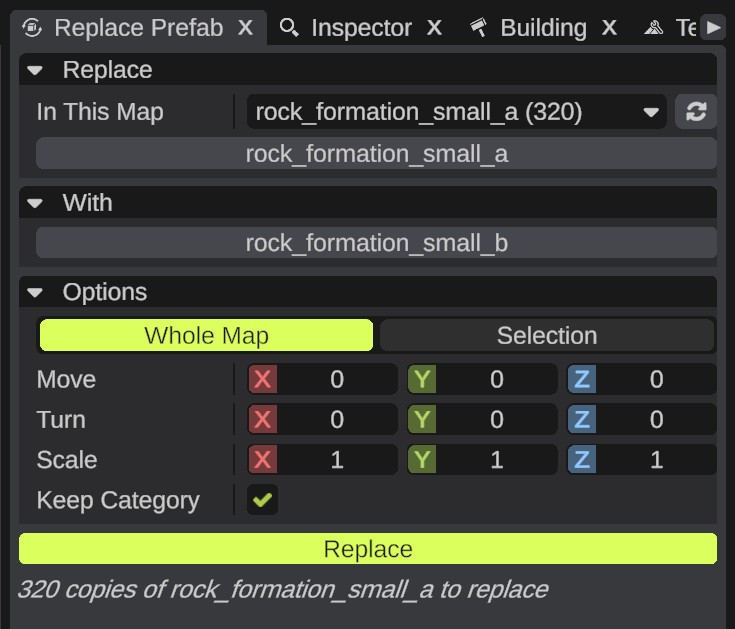
How to replace a prefab
- Pick the prefab to replace. You can:
- pick it in the In This Map list, which shows each prefab in the map and how many copies there are, most used first;
- select a copy in the scene, then click the slot under the list ("Use selected, or drop a prefab here");
- drag a prefab from the Content Browser onto the slot.
- Pick the new prefab in the With section. Drag a prefab from the Content Browser onto the slot ("Drop a prefab here from the content browser"), or select a prefab in the scene and click the slot.
- Set the options.
- Read the line under the button. It says how many copies will be replaced.
- Click Replace. The old copies are deleted and the new ones are selected. The line says "Replaced ... prefabs with ...".
While the panel is open, right-click a prefab in the Content Browser and pick Replace this prefab or Replace with this prefab to fill a slot.
Replace Prefab options
| Option | What it does |
|---|---|
| In This Map | The prefabs in the map and how many there are. The list always counts the whole map. Click Refresh (the button beside it) to count again. |
| Whole Map / Selection | Replace in the whole map, or only in the selected objects and everything under them. |
| Move | Moves each new prefab along its own X, Y and Z axes, in meters. The distance is multiplied by the old copy's scale. |
| Turn | Turns each new prefab about its own axes, in degrees. |
| Scale | Multiplies the size of each old prefab. 1, 1, 1 keeps the size. |
| Keep Category | On: the new prefab takes the old one's category. Off: it gets "Decor". On by default. |
What is kept
The new copy takes the old copy's place in the Hierarchy (its parent and its place in the list), its children and its name. Nothing else is copied: settings you made in the Inspector (custom data, building grade, sign pictures, IO settings), wires to the old copy, and the lock state are lost. Locked copies are replaced too.
Replace Prefab does not copy the old copies' settings. Check the result before you save, and press Ctrl+Z if it is not what you wanted.
Messages
| Message | What it means |
|---|---|
| "Pick the prefab to replace and the new prefab" | One of the slots is empty. |
| "The new prefab is the same prefab" | Both slots hold the same prefab. |
| "There are no copies of that prefab here" | The map (or the selection) has no copies of the prefab to replace. |
| "Select a prefab in the scene first" | You clicked a slot with no prefab selected. This message shows in the notifications, not in the panel. |
Remove Duplicates
Remove Duplicates finds copies of the same prefab that sit on top of each other, and deletes all but one. Stacked copies happen when you paste or place the same thing twice. They cost performance in the game and you cannot see them.
Open it with . It opens as a window. You can still work in the scene while it is open.
How to remove duplicates
- Pick Whole Map or Selection.
- Set Distance and Angle.
- Click Find. The duplicates are selected, so you can look at them. The window says "Found ... duplicates. They are selected".
- Click Remove. The window says "Removed ... duplicates". Press Ctrl+Z to bring them back.
Remove Duplicates options
| Option | What it does |
|---|---|
| Whole Map / Selection | Look in the whole map, or only in the selected objects and everything under them. |
| Distance | How far apart, in meters, two copies can be and still count as stacked. 0 to 1, default 0.01. |
| Angle | How far apart, in degrees, the turns of two copies can be. 0 to 10, default 1. |
| Ignore Scale | Off: copies must also have the same size. On: copies of a different size count too. Off by default. |
| Skip Locked | Locked prefabs are never removed. On by default. |
Which copy stays
Two copies are duplicates when they are the same prefab, close enough, and turned the same way within the limits. The oldest copy stays. A prefab that has children in the Hierarchy is never removed.
Remove searches again: it does not use the selection that Find made, so deselecting a found copy does not keep it. With Selection, Remove looks only at what is selected when you click it. After Find, only the duplicates are selected, so Remove no longer sees the copies they sit on and usually says "No duplicates found". Select your objects again, then click Remove.
Generate Text
Generate Text writes text in the world with Rust's tunnel sign letters. Each letter and number is a prefab. The letters are grouped under one empty object, so you can move the text as one.
Open it with or the Generate Text button on the toolbar. It opens as a panel.
How to generate text
- Type the text in the Text box. Each line of the text is a line of signs.
- Set the size, spacing, line height and alignment.
- Pick where the text goes: Where I Look or On Selected.
- Click Generate. The text appears and is selected. The group is named "Text: " and your text.
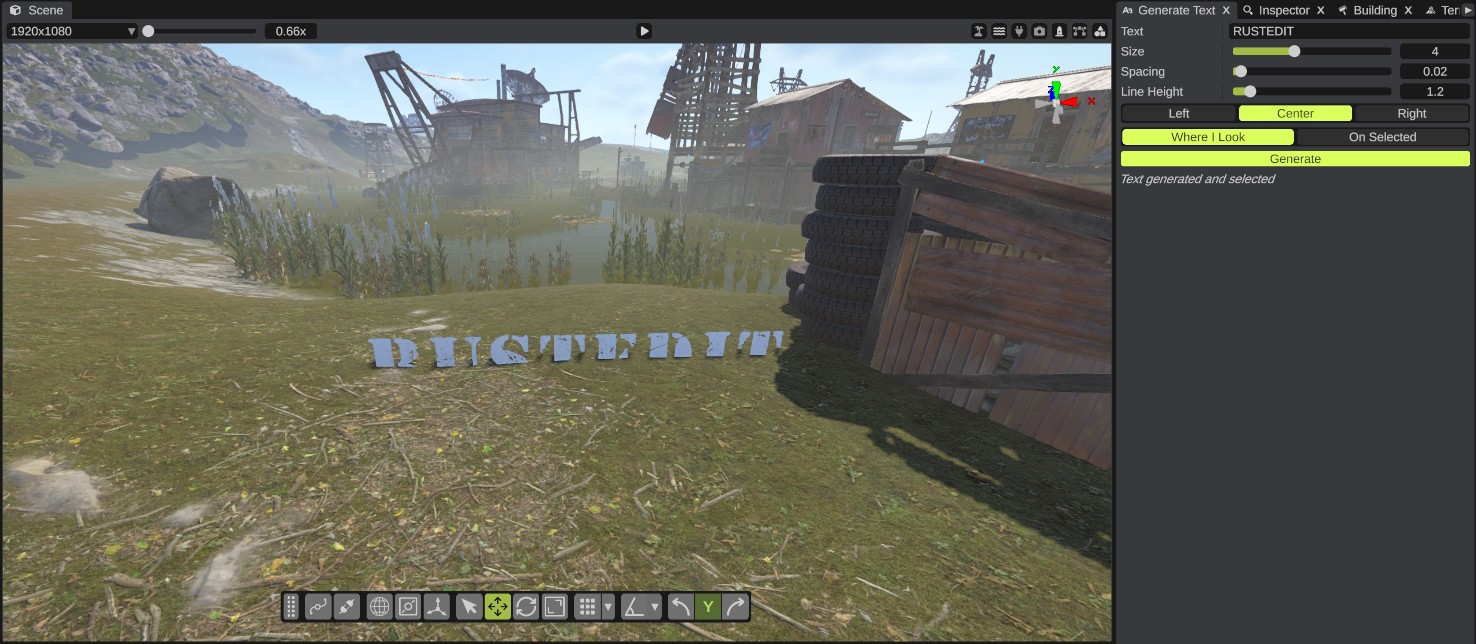
Generate Text options
| Option | What it does |
|---|---|
| Text | Letters and numbers, up to 200 characters. Press Enter to start a new line. |
| Size | The scale of each letter. 0.25 to 10, default 1. |
| Spacing | Meters between letters, at size 1. 0 to 0.5, default 0.02. |
| Line Height | The height of a line, in letter heights. 1 to 3, default 1.2. |
| Left / Center / Right | How the lines line up on the place the text goes. Default Center. |
| Where I Look | On the ground in the middle of the view, facing the camera. If the middle of the view does not hit the terrain, the text goes 10 m ahead of the camera. |
| On Selected | On the selected object, turned like it. The text group is not made a child of that object. |
Which characters work
Only the letters A to Z and the numbers 0 to 9. Upper and lower case look the same. A space leaves a gap. Other characters, such as punctuation and accented letters, have no sign: they are left out and the panel lists them ("Text generated. These have no sign and were left out: ...").
Convert CopyPaste
Convert CopyPaste turns a file saved by the CopyPaste server plugin into a RustEdit monument. Use it to bring a base or build from a server into your map.
- Click .
- Pick one or more CopyPaste
.jsonfiles and confirm. RustEdit writes one monument file (.asset) for each, named after the.jsonfile, into your Custom Monuments folder. It never overwrites a file: a second "base.asset" becomes "base 2.asset". - Read the result window. It lists the prefabs, building blocks and wires of each monument.
- Click Open It to open the monument, or Close. With more than one file, both buttons say Close.
The result window has the title "Confirm Action" and an error icon, also when the conversion worked. Read its text to see what was converted.
The new monument is in the Content Browser, with the other monuments. Place it like any monument. See Monuments.
What is kept
- Every prefab that Rust knows, with its children. All get the category "Decor".
- Building grades.
- Sign pictures.
- CCTV identifiers.
- IO wires between the entities in the copy, and IO settings: branch amount, timer length, counter target and frequency.
The monument has flat terrain at 0 m. The point the copy was made from is the monument's pivot.
What is left out
- Prefabs that Rust does not know.
- Locks and door closers. They cannot be in a map.
- The children of anything that is left out.
- Wire paths and colors, skins, box contents and owners.
When something is left out, the notifications say so, with the most common names ("Left out ... that cannot be in a map (unknown prefabs, locks, door closers): ...").
| Message | What it means |
|---|---|
| "... was not converted: The file has no entities" | The file is empty or is not a CopyPaste file. |
| "... was not converted: None of its prefabs are in Rust's prefab list" | Nothing in the file can go in a map. |