Selection and Transform
This page shows how to pick objects in the scene view and change where they are, how they are turned and how big they are. It also covers duplicate, delete, lock, hide and undo.
Select objects
Click an object in the scene view to select it. The selected object gets an outline, and the Inspector shows its panels.
| Do this | To |
|---|---|
| Click an object | Select it. This replaces the selection. |
| Ctrl + click | Add the object to the selection. |
| Alt + click | Remove the object from the selection. |
| Click the same spot again | Select the next object under the pointer, when objects overlap. |
| Shift + click | Open a list of every object under the pointer, and pick from it. See Pick from a list. |
| Click empty space, or right-click without moving the mouse | Clear the selection. |
- A click on any part of a placed monument selects the whole monument.
- A click on a building block's look (its skin) selects the block.
- Locked and hidden objects cannot be picked: the click goes through them to the next object.
- The click looks along the pointer up to 500 m away and does not stop at the terrain. So a click on the ground can select an object behind a hill. If that happens, use Shift + click to pick the object you want from a list.
- Clicking an object that is already part of a selection of several does not reduce the selection to that object. Use Alt + click on the others, or click empty space first.
You can also select objects in the Hierarchy. The Hierarchy can select locked and hidden objects, and the parts of placed monuments.
Box selection
Hold the left mouse button away from the gizmo and drag a box of at least 10 pixels. Objects are outlined while you drag.
- An object is selected when its pivot point (not its whole shape) is inside the box.
- Only objects within 400 m of the camera count.
- Locked and hidden objects, and parts of placed monuments, are left out.
- An object must have a model on the screen. Empty objects, placed monuments and placeholders have none, so a box never selects them. Click them, or select them in the Hierarchy.
- Release without a key to replace the selection, with Ctrl to add to it, or with Alt to remove from it.
Pick from a list
When objects overlap, Shift + click opens the Prefab Selection Menu. It lists every object under the pointer, with its distance. Highlight the ones you want and click Select. Hold Ctrl when you click Select to add them to the selection, or Alt to remove them.
Selection groups
Save a selection under a number key and get it back later:
| Keys | What it does |
|---|---|
| Ctrl+1 (any number 0 to 9) | Saves the selection as group 1. |
| 1 | Selects group 1. Press it twice quickly to move the camera to it. |
| Shift+1 | Adds group 1 to the selection. |
Use the number keys above the letters, with the pointer over the scene view. Groups are kept only until you close RustEdit.
The transform gizmo
The gizmo is the set of handles on the selection. Pick a tool with a key or on the transform widget:
| Key | Tool |
|---|---|
| Q | Selection tool: no gizmo, for clicking only. |
| W | Move. |
| E | Rotate. |
| R | Scale. |
The keys work with the pointer over the scene view. A tool the selection cannot use is greyed out: for example, splines cannot be scaled.
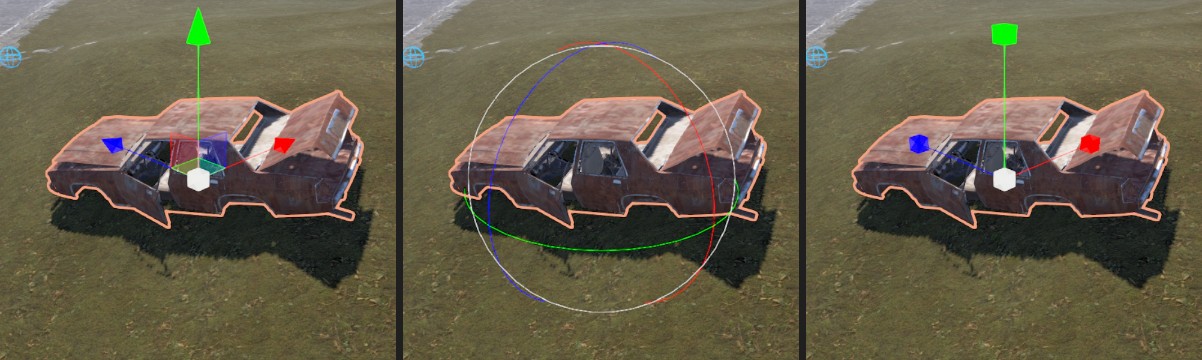
- Move: drag an arrow to move along one axis, a small square to move on a plane, or the gray center square to move freely. A free move puts the object on the terrain under the pointer. Hold Alt during a free move to put it on other objects too.
- Rotate: drag a ring to turn around one axis, or drag inside the circle to turn freely.
- Scale: drag an axis cube to scale along that axis, or the center cube to scale evenly.
The X axis is red, Y green and Z blue. The handle you drag turns yellow. Hold Alt while you drag an axis to move, turn or scale ten times slower. Each drag is one undo step. There is no way to cancel a drag while you do it: undo it after.
Global or local, center or pivot
| Key | Setting | What it does |
|---|---|---|
| X | Global / Local | Global: the handles follow the world axes. Local: they follow the last selected object's own axes. |
| Z | Center / Pivot | Center: the gizmo is in the middle of the selected objects. Pivot: it is on the pivot point of the last selected object. |
Rotating turns the objects around the gizmo. Scaling always works from the middle of the selection, also in Pivot mode.
When you move a selected object, its children move with it.
The transform widget
The transform widget is the strip of buttons in the scene view. Drag its handle to move it. Right-click the handle to make it Horizontal or Vertical. RustEdit remembers where you put it.
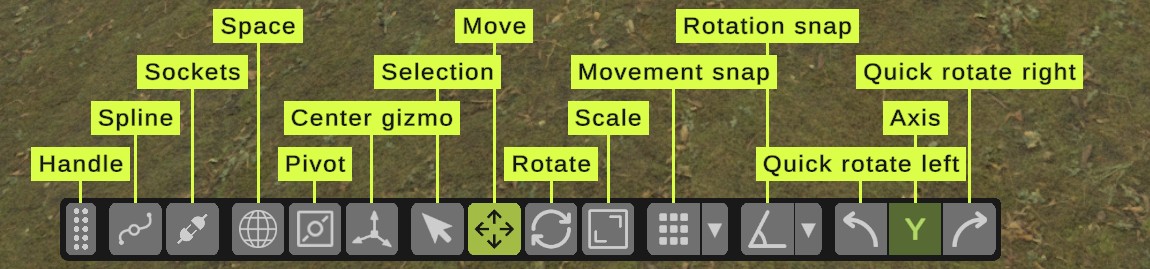
| Button | What it does |
|---|---|
| Selection tool | Selection tool (Q). |
| Movement tool | Move (W). |
| Rotation tool | Rotate (E). |
| Scale tool | Scale (R). |
| Space | Switches between local and global space (X). |
| Pivot | Switches between center and pivot (Z). |
| Center gizmo | Draws the gizmo in the middle of the screen, 10 m in front of the camera, so you can grab it when the selection is far away. |
| Movement snap | Turns movement snapping on and off. Next to it: Amount and Mode. See Snapping. |
| Rotation snap | Turns rotation snapping on and off. Next to it: Degrees. |
| Quick rotate | Two buttons and an axis (X, Y or Z, default Y): turn the selection 90 degrees counter clockwise or clockwise around that axis. |
| Spline | Turns on spline editing. A spline must be selected. See Editing splines. |
| Draw splines | Shows splines in the scene view. Only while spline editing is on. |
| Sockets | Shows sockets. See Sockets. |
Snapping
Snapping makes the gizmo move or turn in fixed steps. Set it on the transform widget.
| Option | What it does |
|---|---|
| Movement snap | On: moves go in steps of Amount meters. |
| Amount | The step for moves. |
| Mode | Local snaps the distance you move. World snaps where the objects end up to a grid of the world. |
| Rotation snap | On: turns go in steps of Degrees. |
| Degrees | The step for turns, in whole degrees. |
- Snapping starts off each time you start RustEdit, with steps of 1.
- There is no scale snapping and no snapping to other objects' corners or surfaces.
- Typed values, quick rotate, Move to Mouse and Snap to Ground are not snapped.
Type exact values
The Transform panel in the Inspector shows the selection's position, rotation and scale. Type a value to move, turn or scale the selection exactly. You can also copy values from one object and paste them onto another there.
Move with the mouse
| Keys | Name | What it does |
|---|---|---|
| Ctrl+Alt+Mouse Left | Move to Mouse | Moves the selection to the terrain point under the pointer. |
| Ctrl+Alt+Mouse Right | Move to Target | Gives the one selected object the position, rotation and scale of the object you click (of its top-level object, when the clicked object is in a group). |
| Ctrl+Alt+Mouse Middle | Snap to Ground | Puts each selected object's pivot on the terrain. Its rotation does not change. Also in . |
Each is one undo step. Move to Target needs exactly one selected object: with more, it says "You can only clone transform values when 1 object is selected".
Focus on the selection
- In the scene view, hold the right mouse button and press F. The camera keeps its direction and moves to the middle of the selection. It may not fit the whole selection in the view: to fit it, use Focus in the Hierarchy.
- In the Hierarchy, double-click a row, or right-click it and click Focus.
- Press a selection group number twice.
Duplicate and delete
| Item | Key | What it does |
|---|---|---|
| Ctrl+D | Copies the selected objects. | |
| Delete | Deletes the selected objects. There is no question first. |
The keys work with the pointer over the scene view. In the Hierarchy, use the right-click menu.
Duplicate puts the copies in the same place as the originals, under the same parent, right after them in the Hierarchy. The copies are selected, so you can move them away at once. A copy gets everything the original has: its children, its name, its Inspector settings and its custom data. Socket links between copied objects are copied too. Lock and hide are not copied.
Delete removes the selected objects and everything under them.
Both are one undo step. The parts of a placed monument cannot be duplicated or deleted one by one: RustEdit says "Parts of a placed monument come from its file. Unpack the monument to change them".
Lock and hide
Lock objects you do not want to move by mistake, such as the terrain's big rocks. Hide objects that are in the way.
- A locked object cannot be picked or moved in the scene view. You can still select it in the Hierarchy, and Delete still works on it. If a selected group has a locked object in it, the group cannot move.
- A hidden object is not drawn and cannot be picked in the scene view. It is still in the Hierarchy (dimmed), in the scene file and in the exported map.
| Item | Key | What it does |
|---|---|---|
| Ctrl+L | Locks the selected objects and everything under them, and clears the selection. | |
| Ctrl+Alt+L | Unlocks every locked object. | |
| Ctrl+H | Hides the selected objects and everything under them, and clears the selection. | |
| Ctrl+Alt+H | Shows every hidden object. |
The keys work with the pointer over the scene view. You can also lock and hide from the Hierarchy menu (objects and everything under them, the selection stays) and with the lock and eye toggles of the Name row in the Inspector (only the selected objects, not their children).
Lock and hide are not saved. When you open the scene again, everything is unlocked and shown. They are not undo steps either.
Undo and redo
| Item | Key |
|---|---|
| Ctrl+Z | |
| Ctrl+Y |
- Each gizmo drag, typed value, duplicate, delete, placement and Hierarchy move is one undo step.
- Selection changes are undo steps too, while Record Selections is on.
- In the Inspector, values typed in the Transform panel and changes to custom data are undo steps. Lock, hide, rename and most other Inspector settings are not.
- The undo history is cleared when you open a map. An open monument keeps its own history.
Set the history in the settings, under Undo:
| Setting | What it does |
|---|---|
| Max Undo Steps | The maximum number of undo steps to be recorded. 1 to 1000, default 30. |
| Record Selections | Records selections as undo steps. On by default. Turn it off so that clicks do not use up the undo history. |
Troubleshooting
| Problem | What to do |
|---|---|
| The gizmo is gone or the handles do nothing. | A locked object, or a part of a placed monument, is in the selection. Unlock it, or select the whole monument. The tool may have switched to the Selection tool: press W. |
| I cannot click an object. | It is locked or hidden. Use or , or select it in the Hierarchy. |
| Scale is greyed out. | The selection has splines, or prefabs linked by sockets. Turn on Move Individually in the Sockets panel to scale a linked prefab on its own. |
| Ctrl+D or Delete does nothing. | Move the pointer over the scene view, or use the Edit menu. |