Custom Topology Layers
A custom topology map works like the terrain's topology map: each point has 31 layers that are on or off. You name the map and its layers yourself, and paint them with the paint tools. Use them to mark areas of your map for server plugins.
Open the panel
Open , or click the Custom Topology Layers button on the toolbar.
The panel lists your custom topology maps as cards, then a New Topology Map card.
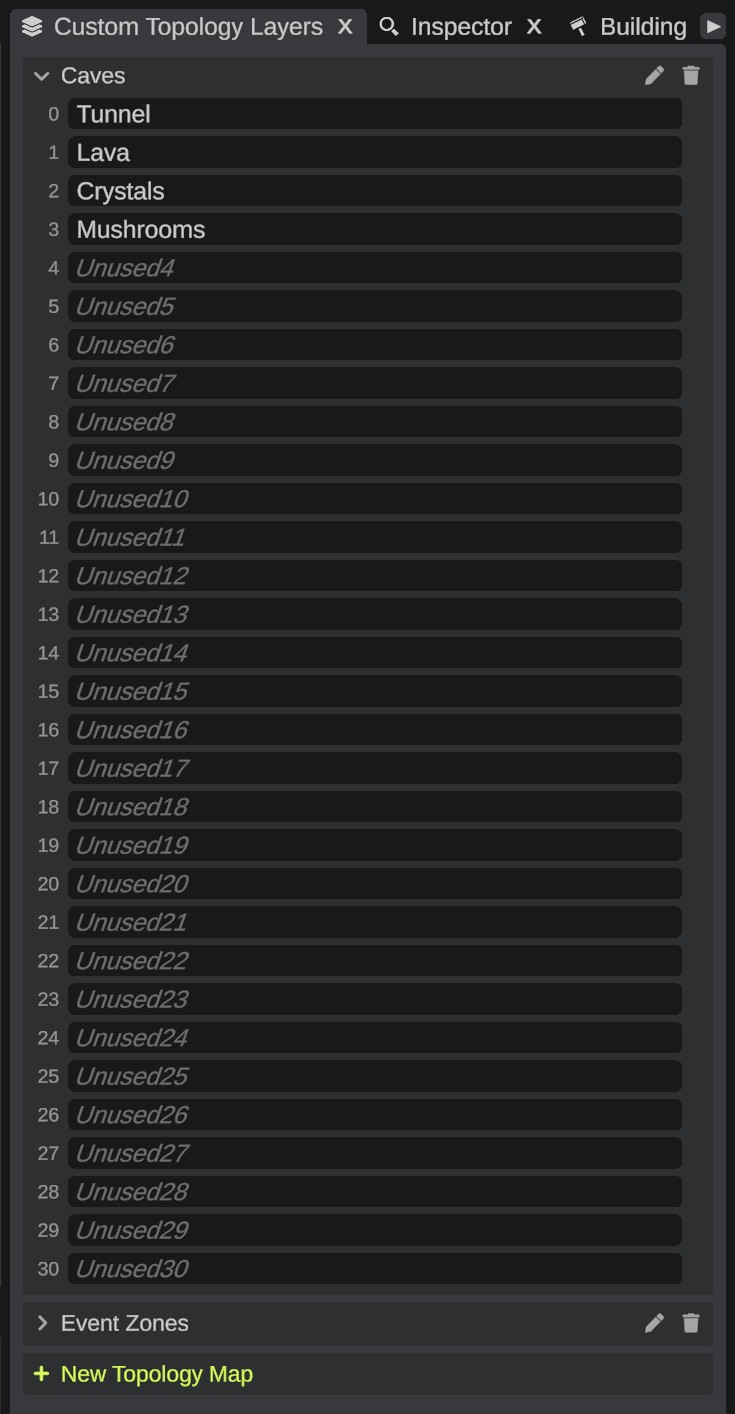
Each card has:
| Part | What it does |
|---|---|
| Arrow and name | Click to open or close the list of the map's layers. |
| Dot | Shows while the map has paint on it in the map you have open. |
| Pencil (Rename) | Renames the map. |
| Bin (Delete) | Deletes the map from your list. |
Make a custom topology map
- Click New Topology Map. A new map is added with a free name, such as "Custom Topology 1". Its card opens and its name field is ready.
- Type a name and press Enter. Press Esc to keep the name it has.
Each map needs its own name, whatever the case of the letters. A name cannot have characters that a file name cannot have. If a name is not allowed, the Notifications panel says why.
Name the layers
- Click the map's header to open it. It lists the layers, numbered 0 to 30.
- Click a layer's field and type a name. Press Enter or click elsewhere to keep it.
A layer you have not named shows its default name in grey, such as "Unused3". Clear a field to give the layer its default name back. A dot on a layer row shows that the layer has paint on it in the open map.
Paint a custom topology map
- Open the Terrain Tools and click Paint.
- In Layer, pick your map. Your maps are listed after Topology.
- In Channel, pick one of its layers. The list shows your layer names.
- Pick a topology tool, such as Paint or Erase, and paint.
The terrain shows where the picked layer is. Every topology tool paints the custom map while it is picked, and the Invert and Clear Layer buttons of the Paint tool work on it too. Undo works as for the terrain's topology.
Multi-Topology and Replace list Rust's topology names, not your layer names. They match by position: the first name is your layer 0, the second your layer 1, and so on.
The Layer filter and the conditions of the Conditional tools read only the terrain's own topology, not your custom maps.
Where custom maps are kept
- Your list. RustEdit keeps your list of maps and their layer names in its configuration folder. Every map you open can use them.
- The scene file. A map file keeps only the custom maps you painted in it. A map from your list that you never painted in it is not saved there.
- Opening a map. A map file can bring custom maps you do not have. RustEdit adds them to your list. If you have a map of the same name, your layer names stay, except for layers you never named.
- Exported maps. The exported map file carries the custom maps painted in it, in RustEdit's own data. Rust does not read them. On the server, the RustEdit 2 server extension reads them. See The RustEdit 2 server extension and the extension's GitHub page.
Deleting a map from your list also deletes everything painted on it in the open map. RustEdit asks first.
Other tools
- Rotate Map turns the custom maps with the terrain.
- Merge Map has a Custom Maps option: custom maps of the same name take the merged area, and new names make new maps.
- In a multiplayer session, the custom maps and what is painted on them are shared with everyone.