Paint Tools
The paint tools are the Paint tools of the Terrain Tools panel. They paint the splat, biome, alpha and topology maps. See Terrain overview for what each map does in Rust.
Paint a layer
- Open the Terrain Tools and click Paint.
- In Layer, pick the map: Splat, Biome, Alpha or Topology.
- In Channel, pick the layer to paint, for example Grass or Road. Alpha has no channels.
- Open the tool list and pick a tool.
- Hold Mouse Left and drag over the terrain.
The terrain shows each stamp at once. Each stroke is one undo step: Ctrl+Z undoes it.
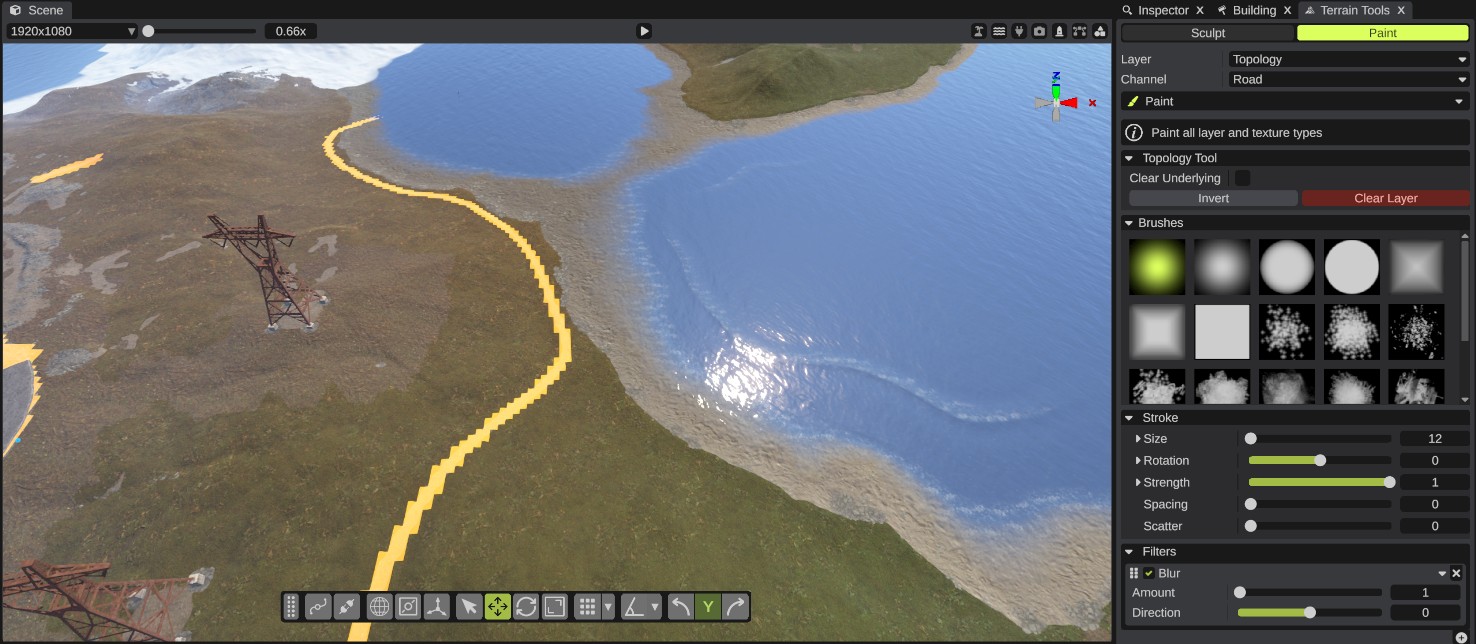
While you paint the biome, the terrain shows a color for each biome. While you paint topology, the terrain shows where the picked topology layer is.
Which tools work on which map
The tool list shows only the tools that work on the picked Layer.
| Tool | Group | Splat | Biome | Alpha | Topology |
|---|---|---|---|---|---|
| Paint | Basic | Yes | Yes | Yes | Yes |
| Erase | Basic | Yes | Yes | ||
| Blend | Basic | Yes | Yes | ||
| Replace | Basic | Yes | Yes | Yes | |
| Multi-Topology | Basic | Yes | |||
| Conditional Paint | Conditional | Yes | Yes | Yes | |
| Conditional Erase | Conditional | Yes | Yes |
While a monument is open, Layer also has Blend, with the tools Paint Blend and Erase Blend. See Monument blend map.
Paint
Paints the Channel on any map. It works differently on each map:
- Splat and Biome: each stamp adds the channel by Strength, where the brush is white. The other channels get less, so the total stays 100%.
- Alpha: each stamp lowers the alpha where the brush is white, to make a hole in the terrain. Strength is not used.
- Topology: each stamp turns the channel on where the brush is at least half white. Strength is not used, and the edge of the painted area is hard.
On Splat and Biome, the Paint Tool section has one option:
| Option | What it does |
|---|---|
| Cap Opacity | Limits the amount of the channel you can paint to the Strength value. For example, at Strength 0.5 the channel never goes above 50%. |
On Topology, the Topology Tool section has these:
| Option | What it does |
|---|---|
| Clear Underlying | Clears all other topology under the painted area, so only the painted layer is left there. |
| Invert | Inverts the picked topology layer on the whole map: where it was on it goes off, and the other way around. |
| Clear Layer | Wipes the picked topology layer from the whole map. |
You can undo Invert and Clear Layer.
On the terrain's own topology, Invert and Clear Layer change only the topology you see, not the map's own topology. The change goes away the next time the topology is built again, for example after your next topology stroke, and it is not saved in the scene file. To clear a layer for good, paint over it with Erase. On a custom topology map, both buttons work and the change is saved.
The biome map keeps four channels: Arid, Temperate, Tundra and Arctic. Jungle is what is left over. Painting Jungle lowers the other four.
Erase
Works on Alpha and Topology. Where the brush is at least half white:
- Alpha: fills the holes back in.
- Topology: turns the channel off.
This tool has no options of its own.
Blend
Works on Splat and Biome. Softens the edges between layers: each point takes on some of the mix of the points around it. Strength sets how much. All channels are blended, so the Channel you pick does not matter.
Replace
Swaps one layer for another, under the brush.
| Option | What it does |
|---|---|
| Replace Layer | The layer that is replaced. |
- Splat and Biome: the amount of Replace Layer moves into the Channel, by Strength. Other layers stay as they are.
- Topology: where Replace Layer is on, it goes off and the Channel goes on, where Strength times the brush is over 0.5.
When Replace Layer and Channel are the same, the tool does nothing.
Multi-Topology
Paints, or erases, several topology layers at once. Channel is hidden: you pick the layers in the tool's section.
| Option | What it does |
|---|---|
| Erase | On: the tool takes the picked layers away instead of painting them. |
| Topology Layers | The layers to paint. Pick as many as you like, or Everything. The overlay shows all of them. |
| Name box and Save Preset | Type a name and click Save Preset to keep the picked layers as a preset. |
| Preset list and Load Preset | Pick a preset and click Load Preset to use its layers. |
Presets are kept in RustEdit's configuration folder, so every map can use them. If no layer is picked, the Notifications panel says "You have not set a topology mask".
After Load Preset, the Notifications panel says "Loaded Preset" with the preset's name, and the tool paints the preset's layers. The Topology Layers list still shows your old picks. If you change the list after that, the tool paints the list's picks again.
Conditional Paint and Conditional Erase
These tools paint or erase only where the terrain meets conditions you set, for example only on steep slopes, or only where there is no road.
- Conditional Paint works on Splat, Biome and Topology.
- Conditional Erase works on Alpha and Topology. On Alpha it fills holes back in.
| Option | What it does |
|---|---|
| Height Range | Only paints where the ground height is in this range. The range runs from 0 to 1000 meters, measured from the bottom of the terrain: 500 is sea level. |
| Slope Range | Only paints where the slope is in this range, in degrees: 0 is flat, 90 is a wall. |
| Required Splat | Only paints where at least one of the picked splat types is there. |
| Required Biome | Only paints where at least one of the picked biomes is there. |
| Required Topology | Only paints where at least one of the picked topology layers is on. |
| Blocked Splat | Only paints where none of the picked splat types is there. |
| Blocked Biome | Only paints where none of the picked biomes is there. |
| Blocked Topology | Only paints where none of the picked topology layers is on. |
You can pick several values in each list. A list with nothing picked is not a condition. A splat type or biome counts as there when it is more than 20% of the mix.
Jungle never counts as there in these lists: Required Biome with only Jungle picked paints nothing, and Jungle in Blocked Biome blocks nothing. To paint only on jungle ground, pick Arid, Temperate, Tundra and Arctic in Blocked Biome instead. The tool then paints only where none of those four is more than 20% of the mix.
The Height Range here starts at the bottom of the terrain, not at sea level. To paint above sea level only, set it from 500 to 1000. The Height filter and Flatten Height use meters from sea level instead.
How strong the tools paint:
- On Splat and Biome, each stamp adds Strength times the brush of the channel, as the Paint tool does.
- On Topology and Alpha, a point changes where the brush is at least half white. Strength is not used.
The conditions read the terrain as you see it, with the prefabs' terrain changes in it. They read the terrain's own topology, not your custom topology maps.
Monument blend map
While you edit a monument, Layer has a Blend entry. The blend map sets where, and how much, a placed copy of the monument puts its terrain onto the map. The terrain shows the blend map while you paint it.
| Tool | What it does |
|---|---|
| Paint Blend | Paints where a placed copy of the monument puts its terrain onto the map. Strength sets how fast it builds up. |
| Erase Blend | Takes the monument's terrain away from where a placed copy puts it onto the map. |
See Create and edit monuments.
Custom topology maps
Your own topology maps are listed in Layer after Topology. Pick one, and the topology tools paint it instead of the terrain's topology. Channel then lists that map's layer names. See Custom topology layers.
Troubleshooting
Topology does not paint at the edge of my brush. Topology is on or off: it is painted only where the brush is at least half white. Use a brush with a harder edge.
The conditional tools do nothing. Check that a Height Range of 0 to 1000 and a Slope Range of 0 to 90 cover the ground you paint, and that the required and blocked lists do not rule it out. If your graphics card has no compute shader support, the Notifications panel says so: the conditional tools cannot run on it.